What is Bit Rate?


Free Download Mp4Gain
picture

What is Bit Rate?

bitrate

Bit rate is the amount of video and audio data transferred per second, and the unit called bps (bits per second) is used.

Bitrate

It is expressed as “video file capacity = bitrate value x time”. The higher the bit rate, the better the picture and sound quality, but the larger the final file size. Adjust the bit rate when you want to reduce the file size when encoding a video file or when you want to improve the image quality.

The higher the bit rate, the higher the image quality, but if the original video has a low bit rate, no matter how high the bit rate is, the image quality cannot be expected to improve. . Also, if you are using a CPU with a slow processing speed or a hard disk with a slow rotational speed, if you play a video created at a high bit rate, the processing may not be in time and they will be lost. frames. Also, when posting a video on the home page, it cannot be played properly if the internet line speed is slow.

The DVD-Video standard requires a total video and audio bit rate of 9848 kbps or less, and the Blu-ray standard (BDMV) requires a total video and audio bit rate of 40,000 kbps or less. Therefore, it is necessary to adjust the bit rate according to the purpose and environment. There are two kinds of

encoding methods: constant bit rate (CBR) and variable bit rate (VBR).
Select the encoding method that suits your purpose, such as image quality at encoding time and final size balance.

Constant Bit Rate (CBR)
All constant bit rates are assigned the same bit rate at all times. Set a high bit rate when you want all video files to be high quality, and set a low bit rate when you want to reduce the file size (a low bit rate can make noise noticeable in a scene with a lot of movement).

It always assigns the same bit rate, so you can easily predict the size of the finished file. Therefore, it is recommended to use it when there is an upper limit for the file size after encoding, or when you want to keep the data transfer rate constant.

Also, in WMV (Windows Media Video), etc., 2-pass CBR can be set. With 2-pass CBR, the amount of data distributed to each video is strictly adjusted and is a mechanism to target higher image quality.

Variable Bit Rate (VBR)
Variable bit rate automatically assigns a high bit rate to fast moving scenes and a low bit rate to slow moving scenes. Since the bit rate is assigned according to the scene, the file size can be reduced while the image quality is relatively high, but the final file size is difficult to predict.

VBR can be divided into two types. 1-step encoding (fixed quality) and 2-step encoding (average bit rate).
1-pass MPEG-2 encoding can shorten the processing time for export by analyzing the video and encoding while maintaining the specified constant quality. However, it is difficult to predict the size of the finished file.

In 2-pass encoding, after analyzing the information from all video data in the 1st pass, the bit rate is assigned and encoded in the 2nd pass based on that information. Although the processing time is long because it is processed twice, it is possible to assign the bit rate efficiently, making it possible to create high-quality video. By specifying the average bitrate, you can roughly predict the size of the file.


Free Download Mp4Gain
picture


Mp4Gain Main Window
picture


Mp4Gain Features
picture


Free Download Mp4Gain
picture

[Basic knowledge of video]

[Basic knowledge of video]

bitrate video

An easy-to-understand explanation of the differences between file formats and codecs!

Bitrate

Differences between video file formats and codecs

In this article, I will explain the difference between “file format” and video “codec” in an easy to understand way.

First of all, I don’t understand the meaning of “file format” and “codec”

Even such people can understand it without much thought.

To conclude first

File format (.mov / .mp4, etc.) → Video container
Codec (H264 / AIC, etc.) → Video compression method
It makes a big difference.

To summarize briefly, the codec is the method of compressing the file format.

There are many video file formats and codecs.

Even if the file format is the same, if the codec used is different, it may not be playable depending on the environment. Therefore, knowing these differences and types will be helpful when making or playing videos.

Come on ~

Table of Contents
Understand the file structure of videos
Featuring three main file formats
Quick time (.mov)
Windows Media Video (.wmv)
MP4 (.mp4)
Differences between file formats and codecs
resume
Understand the file structure of videos
First, let’s take a quick look at the structure of video files!

The file format of the video can be recognized by the “extension” when the video is placed on the desktop.

mov screenshot
By the way, this is a video file in “.mov” format.

There are several types of file formats (video containers), but the content is the same.

Video file structure
Video file structure Content
file format There are various formats such as “.mov”, “.mp4”, “.wmv” and “.avi” in terms of extension. Some file formats cannot be played depending on the type of terminal or PC.
Video data The visual part of the video file. Without this, the image will not be displayed on the screen. Due to the large volume of video data, it is almost always compressed.
Audio data Sound data. Without this, there will be no sound. Although the capacity is small compared to video data, it is often compressed as well.
Metadata Text data such as copyright information and shooting date and time.
Featuring three main file formats

I mentioned earlier that there are several types of “file formats” for videos.

If you know everything, you will lose motivation, which is why I will introduce three main video file formats.

Quick time (.mov)
It is a video file format created by Apple Inc. called Quick Time Movie.

You can play it with QuickTime Player on Mac or iTunes.

To play on Windows, you need to install the Windows version of QuickTime Player (free).

Orally, it is called a “mob file” or “M point or buoy”.

Windows Media Video (.wmv)
This is a video file created in Microsoft’s “Windows Media” format.

It can be played with Windows Media Player on Windows.

If you want to play it on Mac, you need to download a media player like LVC.

Taken by mouth, it is called “Double MV”.

MP4 (.mp4)
You have probably heard more about video files.

The reading is “MP4”.

This is the most widely used format.

You can play it with QuickTime Player on Mac, iTunes, and Windows Media Player on Windows.

It is also compatible with many mobile terminals.

Video Basics Part 2

Video Basics Part 2

Video Bitrate

There are two types of bit rates

Bitrate

Bit rate type
There are two types of bit rates.

Constant Bit Rate (CBR)
Variable Bit Rate (VBR)
Constant Bitrate keeps the set bitrate constant regardless of the video content.

An important feature is that the load on the playback device (PC or smartphone) is small, but since the pattern with violent movement becomes a block, it is necessary to set a relatively large bit rate.

In other words, the file size tends to be large.

On the other hand, variable bit rate is a method that automatically increases the bit rate for parts with complicated movements and reduces it for parts with little change, so the overall file size can be kept small.

Instead, the load on the playback device (PC or smartphone) will be high, so the movement may be choppy depending on the device.

Bit rate type Features
Constant Bit Rate (CBR) The
File size tends to be large, making it less burdensome for the playback device.
Variable Bit Rate (VBR)
The file size, which is a large burden on the playback equipment, can be kept small
Which is better depends on the application, but if the image quality is fixed, like Youtube, we recommend variable bit rate with high image quality and light file size.

He didn’t know the difference between the two when he was working. Let’s keep it in our head as knowledge.

Video Basics: What is Frame Rate?

Frame rate knowledge is essential for those who are just starting to record and edit videos!

The video appears to move “showing continuous still images one after another.” Right now, “frame rate (fps)” is the number of still images displayed per second.

It is easy to understand if you imagine a flip book.

Photos and videos feel different, but videos are a collection of photos.

The frame rate is expressed in the unit of “fps”.

This is an abbreviation for “Frame Per Second” and is the number of still images displayed per second.

Remember the general frame rate
Generally, movies are recorded at 24 fps and TV shows are recorded at 29.97 fps.

29.97fps is often downgraded to 30fps because the numbers are not sharp.

The camcorder was originally designed to record video for viewing on a television, so by default it records at the same 30fps as a television.

You can see that a movie has 24 photos per second / a TV has about 30 photos per second.

Frame rate (fps) Features
15 fps Single segment stream frame rate
30 (29.97) fps Domestic TV broadcasts and video cameras in general.
24 fps Frame rate used in movies
60 fps In recent video cameras, as a project with a definition higher than 30 fps, the number of cameras that can record and play back at 60 fps per second is increasing.
The higher the frame rate, the smoother the video will be, but it won’t be blurry and the video won’t be natural.

When exporting as video, there is no question that it should be set to 30 fps or 24 fps general.

Please note that if you edit a video recorded at 24fps to 30fps, you will end up with choppy video due to a lack of still images.

When recording a video → edit, be sure to check the camcorder’s settings (frame rate).

resume
that’s it! As a basic knowledge of video, I explained the difference between “bit rate” and “frame rate”.

The names are similar, but they are completely different.

By the way, what can you think about when video motion stutters

The bit rate is too high to keep up with the playback device’s processing.
The frame rate setting is too low
These two are possible.

There is no doubt that the bit rate and frame rate should be basically set according to the presets.

However, it is easy to fix it if you know the cause, such as when there is a problem playing the video.

Video basics

Video basics

Video Bitrate


An easy to understand explanation of the difference between bit rate and frame rate!

Video Bitrate

Difference between bit rate and frame rate

In this article, I will explain in an easy to understand way the words “bit rate” and “frame rate” that appear when recording and editing videos.

First of all, I don’t understand the meaning of “bit rate” and “frame rate”.

It is easy to understand content for those people.

To conclude first

Bit rate (kbps) → Amount of information recorded / played back in 1 second
Frame rate (fps) → Number of still images displayed per second
It makes a big difference.

Yes, it is something else entirely!

To summarize more simply

Bit rate: determines the video quality (image quality / sound quality)
Frame rate: determines the smoothness of the video.
Does it look like this.

Video shake is uneven … Picture quality and sound quality are worse than I expected …

These causes are usually related to “bit rate” and “frame rate”.

Now let’s understand the two concepts ~

Table of Contents
Video Basics: What is Bitrate?
There are two types of bit rates
Video Basics: What is Frame Rate?
Remember the general frame rate
resume
Video Basics: What is Bitrate?
What is a bit rate?
Bit rate (kbps) is an important factor in determining video quality.

Bit rate represents “how much information is used to record and play back per second” for a video.

For example, in the case of 5 Mbps (5 M bits per second / 5 megabits), it means that the amount of information equivalent to 5 megabits per second is used.

1 Mbps = 1000 Kbps

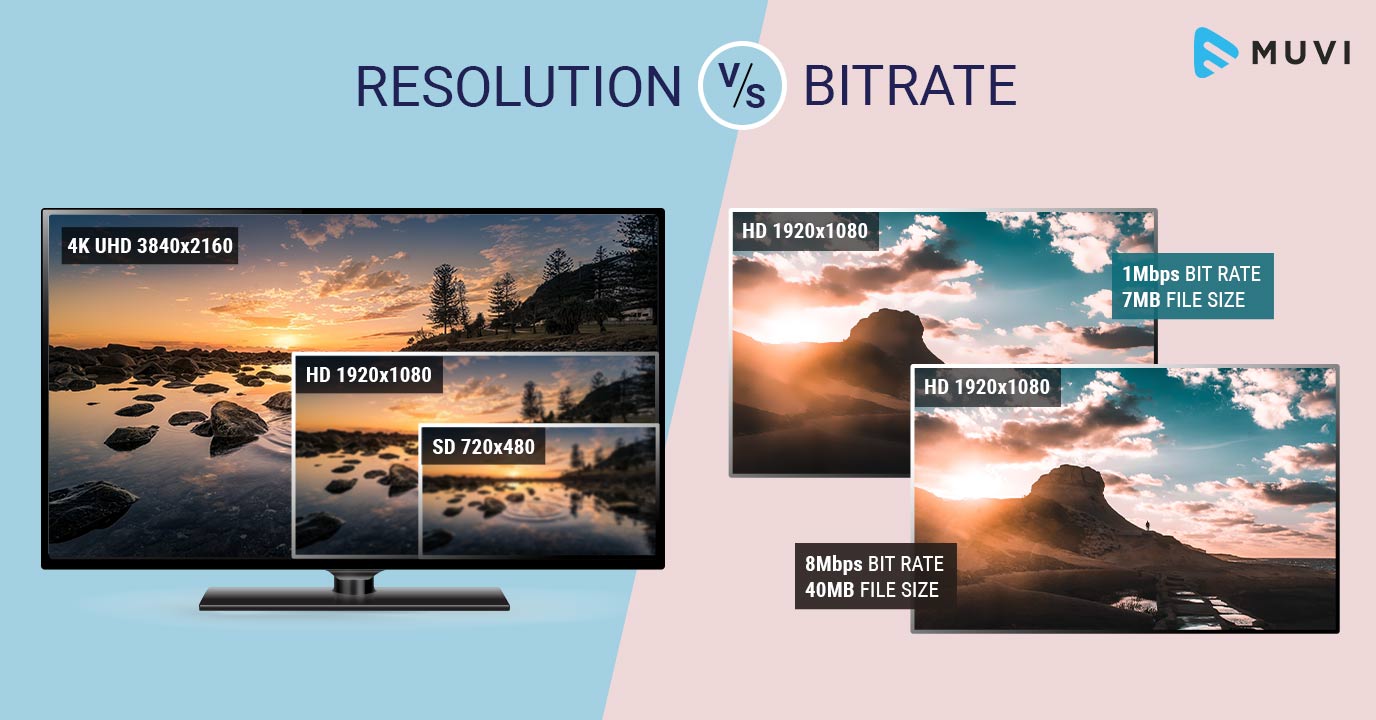
The higher the bit rate value, the higher the picture and sound quality, but the larger the file size.

Conversely, the lower the bit rate value, the poorer the picture and sound quality, but the smaller the file size.

bit rate Features
High bit rate High image quality and high sound quality
Large file size
Low bit rate Low image quality / low sound quality
File size is small

The higher the bitrate, the better! If you overthink it, the file size will be too large and the playback device will not be able to keep up with the processing. When exporting a video, you basically choose the best setting from the presets.

What is the bit rate, which is said to be indispensable for video distribution?

What is the bit rate, which is said to be indispensable for video distribution?

Bitrate

1Bit rate is the number of bits that can be sent and received per second.

Bitrate

Advantages and Disadvantages of Setting a High Video Bitrate
# There are merits such as being able to offer clearer images
#There are disadvantages such as not being able to play fluently
Five What are the factors that affect the image quality of videos?

#frames per second
#resolution
#Codec
6 Relationship between YouTube and bit rate
7 Relationship between video conferencing and bit rate
8summary
One of the important factors affecting the image quality of a video is the “bit rate”. Generally, the higher the video bit rate, the better the image quality. But what is the bitrate of the video? How should I set the bitrate of the video? I wonder if there are a lot of people worried. In this article, we will discuss video and audio bit rates, video bit rate guidelines, advantages and disadvantages of setting a high video bit rate, factors that affect video quality, the relationship between YouTube and bit rates and video conferencing. about.

Bit rate is the number of bits that can be sent and received per second.

Bit rate refers to the number of bits that can be sent and received per second, and the unit is bps, which is short for Bit Per Second.

For example, if it is 100 bps, it means that 100 bits of data can be sent and received per second.

The higher the bit rate value, the more data can be sent and received per second. Video bit for bit rate

There are two types, audio bit rate and rate, and the value calculated by adding these two bit rates is called the oval bit rate.

# Voice bit rate

The audio bit rate refers to the bit rate related to the audio in the video file, and basically the value of the audio bit rate is less than the bit rate of the video. As a guideline for audio bit rate, it is approximately 96 to 128 kbps for lossy codecs such as MP3 and AAC, while it is approximately 192 to 320 kbps for high-quality video.

# Video Bitrate

Video bit rate refers to the bit rate associated with video in a video file. The video bit rate value is large compared to the audio bit rate. The guideline for video bit rate varies greatly depending on the quality of the image to be delivered, and the value varies, but it is also said to be 500 kps at 70 Mbps.

Since the standard audio bit rate is approximately 192 to 320 kbps, the video bit rate occupies most of the oval bit rate when watching the entire video file. Basically, the characteristic of video bitrate is that the higher the value, the better the image quality.

However, it does not mean that the video bit rate value should be high. When viewing an image on a small monitor screen, it can be said that the roughness of the image is not that noticeable even if the bitrate value is a bit low. Even if you increase the value of the video bit rate, you cannot get the feeling that the image quality has improved, and there are many cases where the file size just increases.

Estimated video bit rate
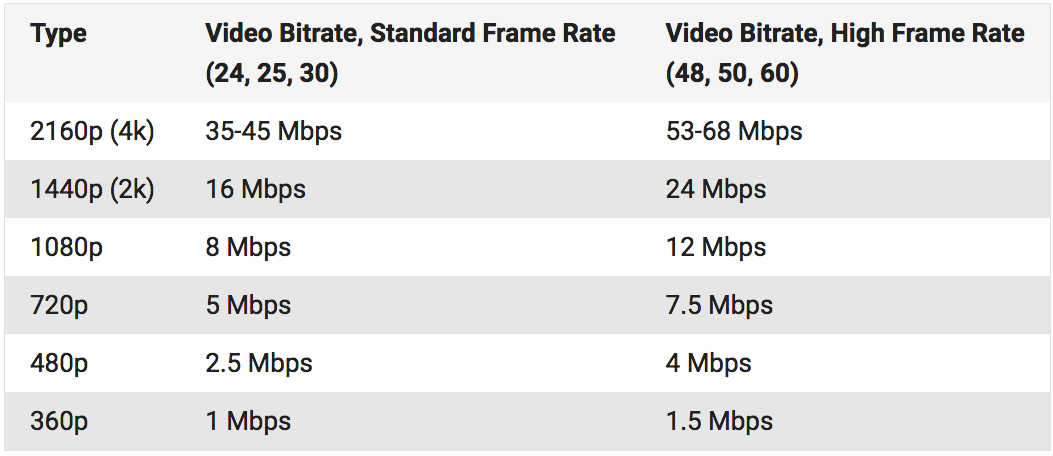
Even if the bit rate value is the same, the image quality will change depending on whether the video content is moving or not. Therefore, it is necessary to determine the bitrate that appears to be optimal for the video. The following is a guide to the proper bit rate for frequently used video resolution when distributing videos on YouTube.

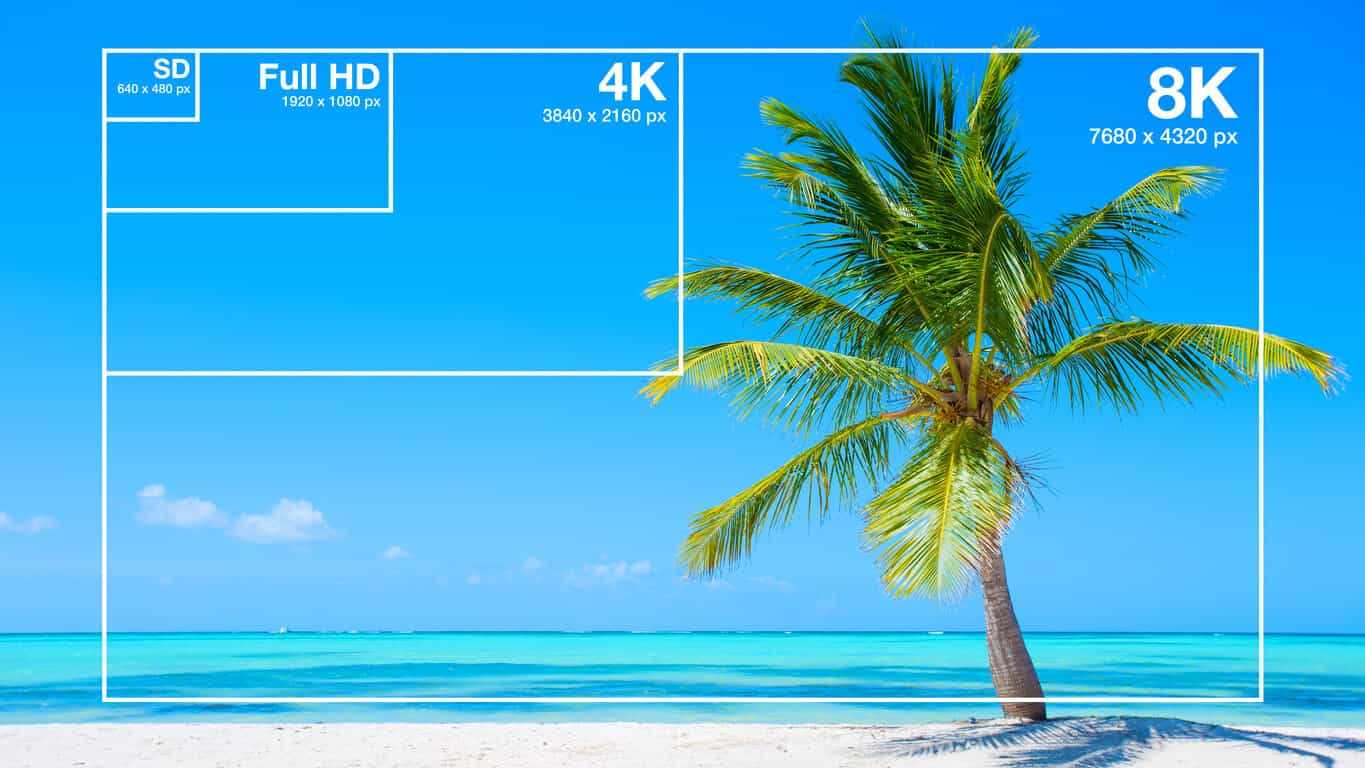
Resolution SD (720 x 480px) 1-2 Mbps (video with a lot of movement) 500kps ~ 1Mbps (video with little movement)
HD resolution (1280 x 720px) 4.5-9Mbps (video with a lot of movement) 2.4-4.5Mbps (video with little movement)
Full HD resolution (1920 x 1080px) 9Mbps-18Mbps (high-motion video) 4.5-9Mbps (low-motion video)
4K resolution (4096 x 2160px) 35 ~ 70Mbps (high motion video) 25-35Mbps (low motion video)

H.266 video encoding method

H.266 video encoding method

H.266

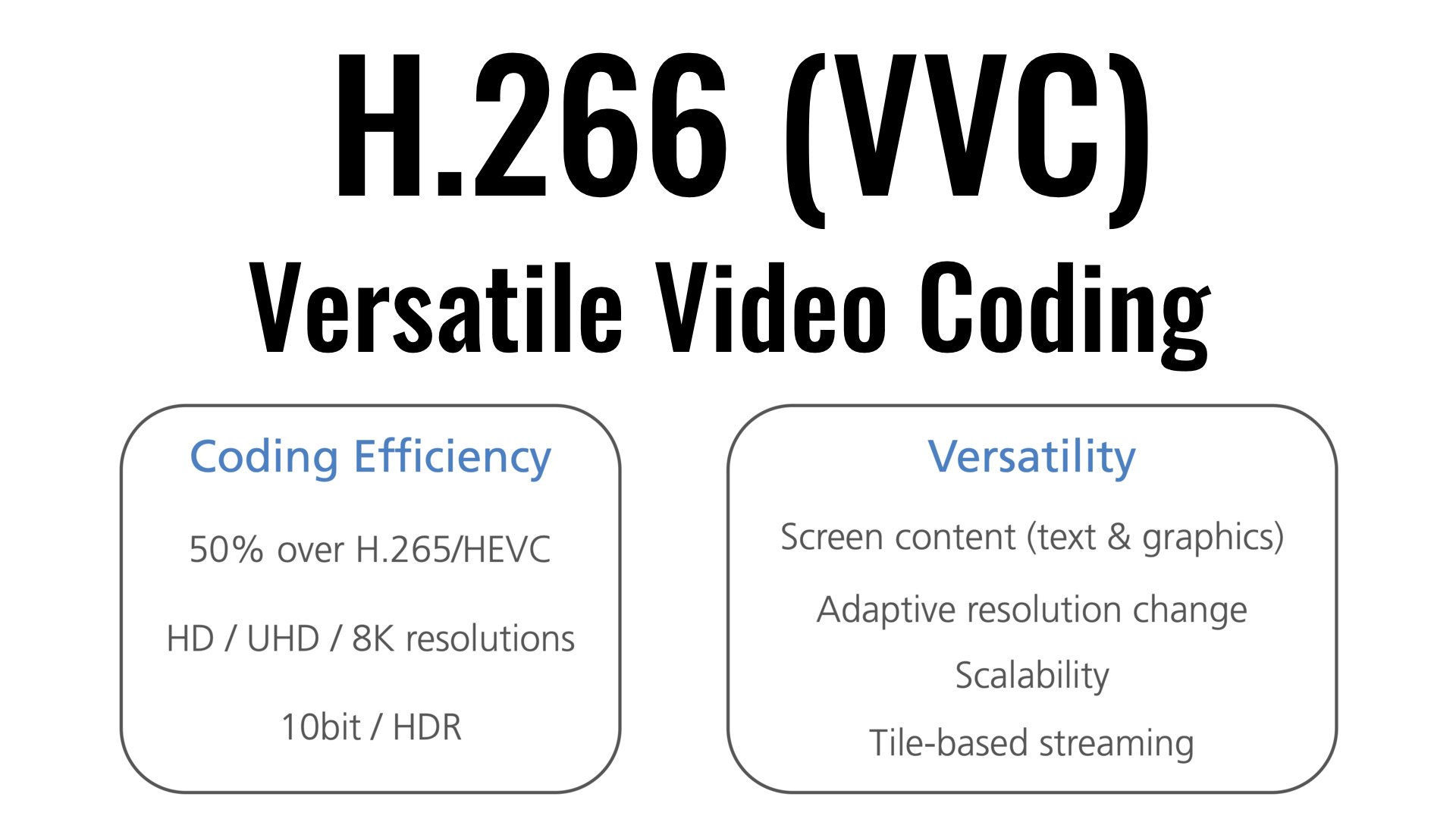
| It was successful in transmitting 4K / 60fps video using a VVC compliant real-time codec – It is possible to provide highly realistic video services at a bit rate less than half that of the method.

H.266/VCC

KDDI R&D Laboratories, Inc. (Headquarters: Fujimino City, Saitama Prefecture, Director: Gen Nakamura, hereinafter “KDDI R&D Laboratories”) is the latest international standard H.266 video encoding method | VVC (Versatile Video Coding) Using a real-time codec system (hereinafter “this system”) compatible with “VVC”), we achieved a demonstration experiment of streaming 4K video at a bit rate of 12 Mbps (megabit / sec) and a frame rate of 60fps (frames / sec.) We have confirmed that stable video quality can be maintained even if the bit rate is reduced to less than half that of the current stream.
Current 4K streaming video is streamed at a frame rate of 60fps, and by using this system, viewers can be provided with a highly realistic video service comparable to 4K streaming, including not only streaming but also mobile lines. . provide a more flexible network configuration.

[Background]
KDDI R&D Laboratories is dedicated to the research and development of compression technology with the aim of realizing a content experience that maintains a high sense of presence by providing the optimal transmission media according to the situation of the user who is viewing the video. Is working.

1. 1. This demo experiment follows the following two VVC research results announced by KDDI R&D Laboratories in September and December 2020.
・ Developed the world’s first newest video encoding method H.266 | VVC Compliant 4K Realtime Encoder (September 1, 2020)
・ The world’s first newest video encoding method H.266 | VVC Compatible Realtime Codec 4K Live Streaming Successful Demo Experiment (Dec 23, 2020)

2. VVC is the latest video encoding method, and is the international standard video encoding method widely used in today’s Internet 4K / 8K video transmission and distribution services. H.265 | HEVC (High Efficiency Video Coding, hereinafter “” Achieves twice the video compression performance of “HEVC”). It was standardized in August 2020 by the international standardization bodies ITU-T and ISO / IEC. In Japan, its adoption is being considered as one of the video coding methods in the sophistication of terrestrial digital television broadcasting, which is being studied by the Ministry of the Interior and Communications (Note 1).

The 3.4K video streaming has a frame rate of 60fps and is superior in reproducibility of high-speed moving scenes compared to 30fps, which is generally used for Internet video distribution, especially in sports scenes. It helps to improve the quality of the experience. In the experiments so far, it was aimed at 30fps and it was difficult to use it for streaming.

[Scheme and results of the demonstration experiment]
On December 21, 2021, a network line was used from Kansai Television Broadcasting Corporation (Kita-ku, Osaka) to the KDDI Research Workshop (Minato-ku, Tokyo) using this system developed by KDDI R&D Laboratories. a video streaming demonstration experiment over.

In the demo experiment, we managed to stream 4K video at 12 Mbps bit rate and 60 fps frame rate, and confirmed that stable video quality can be maintained even if the bit rate is reduced to less than half of the current one. transmission.
We have improved acceleration processing and parallelization processing that are effective for making VVC encoders on multi-core CPU platforms, and we have devised and realized technology that scales not only at a frame rate of 30fps but also at 60fps. .

Factors related to the quality of video and audio data Part 2

Factors related to the quality of video and audio data Part 2

Bit Rate

resolution
This is also an item dedicated to video.

Video Bitrate

Resolution is a numerical value that represents the density of pixels in an image. We use the unit “dpi (dots per inch)” or “ppi (pixels per inch)”. The “image” in digital is expressed by “a collection of very small colored dots (pixels).” The higher the resolution value, the higher the density of this point and the finer and more natural the image will be.

There is also a concept similar to this, which is the concept of resolution using pixels (dots, pixels). Uses pixels [pixel], dots [dot], or pixels as the unit. It is often written as “1920 x 1080 pixels” or “2 million pixels”, and in the case of this video, there are “1920 horizontal and 1080 vertical color points (pixels), and the total number of points is 2,073,600 ( approximately). It means “2 million pieces)”. (* Pixel = dot = pixel)

For resolutions that use “dpi”, it represents the density of pixels per 1 inch (= 0.0254 meters) of a straight line.
For resolutions that use “pixels”, it represents the total number of pixels used in the video.

The exact definition of resolution is the first. However, the latter is also widely recognized. Be careful not to get confused.

▲ Source: Wikipedia “Resolution”

Screen resolution / ratio
In the field of displays, there is also “screen resolution”. This is represented by pixels. Because it uses pixels, it represents the total number of pixels on the screen. You can also express the “screen aspect ratio (screen aspect ratio)” by multiplying it by something like “1920 x 1080 pixels”. If it is “1920 x 1080 pixels”, the aspect ratio of the screen is “16: 9”.

If the aspect ratio of the image and the aspect ratio of the screen do not match, black bands may appear at the top and bottom or left and right when the image is fully displayed (enlarged display), or the image may be to stretch.

Some screen aspect ratios have special names. The following are pixel counts, screen aspect ratios, and commonly used screen names. (* Since most pixel ratios are square, screen aspect ratio = screen aspect ratio)

Known as Horizontal x Vertical Ratio
(horizontal: vertical) Number of pixels
VGA 640 × 480 4: 3 307,200
SVGA 800 × 600 4: 3 480,000
XGA 1024 × 768 4: 3 786,432
SXGA 1280 × 1024 5: 4 1,310,720
WSXGA + 1680 × 1050 16:10 1,764,000
FHD (Full HD) 1920 × 1080 16: 9 2,073,600
WUXGA 1920 × 1200 16:10 2,304,000
Wikipedia: screen resolution that

By the way, continuing from last time, there is too much basic knowledge and it seems frustrating, but please do your best. Knowing this and not knowing it will make a big difference in your video and audio conversion and playback work. Remember it little by little as it is a necessary knowledge to be able to play and convert optimally while maintaining quality without waste.

Factors related to the quality of video and audio data

Factors related to the quality of video and audio data

Video Bitrate

Last time, I wrote about “codecs” and “containers” that determine the format of the video and audio data. Now, I would like to write about each item related to the “quality” of that data.

Bit Rate

Bit rate
Bit rate [bit rate], or bits per second, is a unit of data transfer rate.
It is defined as the number of bits that have passed (transferred) at a given point on the data transfer path per second. Also known as bps [bits per second] and b / s. Other names include “bit rate” and “bit efficiency”, all of which have the same meaning.

In short, it is a unit that expresses “how much data (information) can be transferred”. A large number means that the amount of data passed at a certain point is large and the quality of the video and audio is improved. The greater the amount of data (that is, video / audio information), the higher the image quality and sound quality.

An SI prefix can also be added, and the unit is as follows.

Bits per second [bps: b / s]
Kilobit per second [kbps: kb / s]
Megabit per second [Mbps: Mb / s]
Gigabit per second [Gbps: Gb / s]
Since it is a unit of data transfer speed, it is also used for the speed of Internet lines. There is also a unit called bytes per second, which is expressed as “Bps” or “B / s” by capitalizing b. 1 byte = 8 bits.

For example, with MP3 audio data, the bit rate value can be increased up to “320 kbps”. The higher the number of bit rates, the greater the amount of data transferred and the greater the original data capacity.

The phrase “high bit rate” is essentially incorrect
I often hear the phrase “high / low bit rate”, but this phrase is really inappropriate.

The word bit rate is a unit, not a physical quantity. It is the same as the relationship between “length (physical quantity)” and “meter (unit)”. We say “long” but not “long meter”.

The physical quantities that represent bit rates are called “transfer rate”, “transfer speed”, “transfer efficiency”, “transmission rate”, “transmission speed”, “transmission efficiency”, and so on. However, the phrase “high bit rate” has become mainstream, so you don’t need to worry too much about it. Remember “To be exact …”.

frames per second
This is a value for video data only.

The frame rate [frame rate] is an index that shows how many frames (still images: frames) can be processed per unit of time. Use fps [frames per second] or f / s as the unit.

Digitally speaking, a video is not recorded as a continuous image, but is taken continuously and displayed at high speed like a flip book, so that it “appears to be moving.” I’m doing. It is a method that uses the effect of human residual image.

The “one-by-one still images” are called “frames” or “frames.”

If the frame rate value is large, the number of processed frames per second will increase, resulting in smoother video. If it is 30 fps, 30 frames per second are processed.
Currently, “30 fps” or “29.97 fps” is very widespread. When you increase to 60fps, the video becomes smooth enough and when you decrease to 15fps or less, the video becomes jerky.

Increasing the value of the frame rate will result in a smoother video, but it will be heavier and of higher capacity.

There is no point in raising him innocently

There is no doubt that increasing the value of the frame rate will result in a smoother video, but if the value called “response speed” of the screen or monitor displaying the video is large (that is, slow), the frame rate value will be increased. It may not make sense to increase it.

Response speed is the time it takes for a signal to actually enter. The unit is milliseconds [ms: 1 ms is 1/1000 second of 1 second]. The “Response Speed” on a screen or monitor indicates the speed when changing from “black to white to black”. (Currently the definition is blurry because it handles colors other than black and white, but it is omitted here.)

If this response speed is high, it means that the video (color) change is fast. If the speed is high, the response speed value will be small and it will be able to display “smooth and clear video, even when moving fast.” At low speeds, the value increases and “residual images are likely to occur in videos being played.

What is a bit rate? Part 2

What is a bit rate? Part 2

Video Bitrate

What is oval bitrate?

Bitrate

Bit rates are assigned to video and audio respectively, and the sum of these is called the “oval bit rate” or “total bit rate”.

Windows video properties

The image above is an image of the details tab opened from the video properties, but the “data rate” of the video is the bit rate of the video, the “bit rate” of the audio is the bit rate of audio and the “total bit rate” of the video is the video. It is the oval bitrate that is the sum of the voice and the voice.

I think it is worth knowing that you can check the bitrate from the property, but there are some parts that are not very reliable, so if you want to know precise information, you should verify it with an analysis software like MediaInfo. .

See the following articles on MediaInfo.

How to use MediaInfo | I also checked the codec of the iPhone video | Tokukyu’s bastard K-team | Baseball

MediaInfo is software that can analyze audio and video file codecs, frame rates, bit rates, etc.

https: // Hamanasu Baseball Club.com/mediainfo/ https: // Hamanasu Baseball Club.com/mediainfo/

Relationship between bit rate and resolution
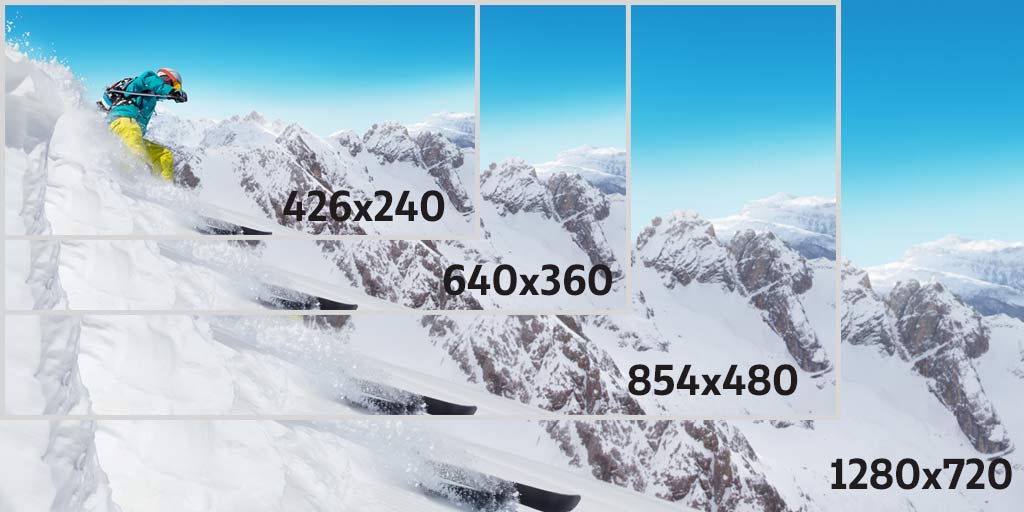
Regarding the relationship between bit rate and resolution, higher resolution videos require a greater amount of information, so inevitably higher bit rates are required.

If the image is just large, the amount of data it contains will also be large.

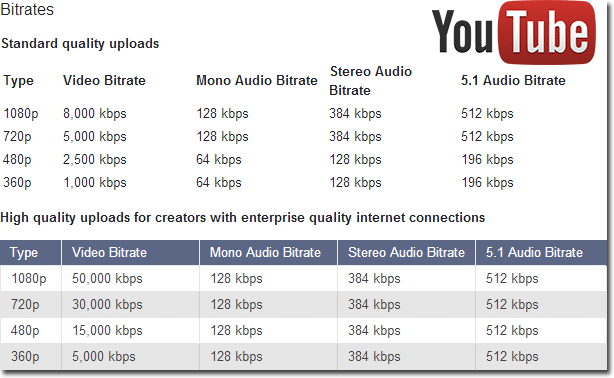
Regarding the relationship between resolution and bitrate when encoding a video, I think the recommended settings on Youtube will be helpful.

Recommended bit rate for Youtube
Note that, like resolution, frame rate increases in proportion to bit rate.

See the following article for the frame rate.

What is the frame rate? | What fps should be set when casting video? | Tokukyu’s bastard K-team | Baseball

Frame rate (fps) is a word that expresses the number of frames (frames) in a video, and it is expressed by the number of frames per second.

Relationship between bit rate and codec
Regarding the relationship between the bit rate and the codec, even if the bit rate is the same, the image quality will be different depending on the codec.

I mentioned earlier that the higher the bitrate, the better the image quality, but this assumes the same codec.

For example, the H.265 codec is said to provide the same image quality at a bit rate of about half that of H.264.

What is a bit rate?

What is a bit rate?

Bitrate

Relationship between encoding settings and image quality

Bitrate

Codec Eye Capture
Bit rate is considered to be the number of bits that can be transferred or processed per second, so the unit is expressed in bps (bits per second) and, in the case of moving images, the amount of data in video and audio contained in one second. It would be good.

In other words, if the bit rate is high, the video will have good picture and sound quality, but the data size will increase accordingly.

When considering video editing encoding, it’s basically better to set the bitrate as high as possible within the allowed range of data capacity, but how do you set the bitrate in the first place? I think there are also people who say that.

Filmora Bitrate Settings
The image above is the output screen of the Filmora editing software, but you can see that you can specify the bit rate in the detailed settings.

If the file format is MP4, you can specify a bitrate within the range of 5000 kbps and 2000-30000 kbps by default, but many people are not sure which setting is the best.

In this article, I would like to summarize the bitrate including the settings when editing the video.

What is a bit rate?
What is the difference between high and low bit rates?
What is oval bitrate?
Relationship between bit rate and resolution
Relationship between bit rate and codec
What is the set bitrate?
resume
Sponsor

What is a bit rate?
What is the difference between high and low bit rates?
As I wrote at the beginning, the bit rate is the amount of information per second, that is, a high bit rate can be interpreted as a large amount of data.

As I wrote earlier, a high bit rate means high image quality and high sound quality, and the data size increases accordingly.

Image quality and sound quality are related to the codec, but basically, the higher the bit rate, the better the image quality and sound quality.

However, it is not possible to improve the image quality of the original file in video encoding, so it is important to understand that increasing the bit rate will not improve the image quality of the original file.