MP3 vs. OGG: Which is Better?


Free Download Mp4Gain
picture

MP3 vs. OGG: Which is Better?
MP3 vs. OGG
MP3 vs. OGG
MP3 vs. OGG
MP3 vs. OGG

MP3 vs. OGG: A Comprehensive Comparison

In the realm of digital audio, the debate between MP3 and OGG has been a long-standing one. Both formats have their merits and demerits, and audiophiles often find themselves divided over which is superior. In this article, we will delve into the intricacies of MP3 and OGG, examining their respective features, compression methods, and sound quality. By the end, you’ll have a clearer understanding of which format may suit your needs best.

MP3: The Pioneering Digital Audio Format

MP3, short for “MPEG Audio Layer III,” revolutionized the music industry when it was first introduced in the 1990s. Its ingenious compression algorithm significantly reduced file sizes while retaining a reasonable audio quality, making it a preferred choice for digital music distribution and storage. With widespread compatibility across various devices and platforms, MP3 has become the go-to format for many music enthusiasts.

OGG: The Open-Source Contender

On the other hand, OGG, an open-source container format developed by the Xiph.Org Foundation, offers a compelling alternative to MP3. The OGG format includes multiple streams, allowing for the integration of various types of data, such as audio, video, and metadata, into a single file. As a result, OGG files can deliver superior sound quality at lower bitrates compared to MP3, making it an attractive option for those who prioritize audio fidelity.

Compression and Sound Quality Comparison

When it comes to audio compression, both MP3 and OGG employ different algorithms. MP3 uses perceptual coding, which discards certain audio data deemed less essential to human hearing. While this results in smaller file sizes, it may also lead to a loss of audio quality, commonly known as “lossy compression.” On the other hand, OGG utilizes the Vorbis compression codec, which aims to preserve audio quality while achieving competitive file sizes. This approach is referred to as “lossy compression with transparency,” as the compression is designed to be imperceptible to the human ear.

Compatibility and Usage

In terms of compatibility, MP3 has a significant advantage due to its widespread adoption over the years. The format is supported by almost all devices, media players, and operating systems, making it a versatile choice for users across the globe. Conversely, OGG faces some compatibility challenges, especially with certain hardware and software that may not natively support the format. However, with the growing popularity of open-source solutions, OGG has seen increasing support in various applications and platforms.

Final Words

In conclusion, the choice between MP3 and OGG depends on your specific needs and preferences. If compatibility and widespread support are crucial to you, MP3 might be the better option. On the other hand, if you prioritize higher audio quality and are open to using an open-source format, OGG could be the ideal choice. Ultimately, both formats have their strengths, and with advancements in technology, the differences in sound quality and compatibility are becoming less pronounced. Whichever format you choose, the enjoyment of your favorite music remains at the heart of the experience.


Free Download Mp4Gain
picture


Mp4Gain Main Window
picture


Mp4Gain Features
picture


Free Download Mp4Gain
picture

The Anatomy of an MP3 File Header

The Anatomy of an MP3 File Header

MP3 File Header
MP3 File Header
MP3 File Header
MP3 File Header

In this section, we will delve into the intricate details of the MP3 file format’s header. The MP3 file header is a critical component that holds essential information about the audio file. It precedes the actual audio data and contains various parameters that influence the decoding process. Understanding the structure and significance of the MP3 file header is crucial for anyone dealing with audio compression and playback.

How does the MP3 file header impact audio quality?

The MP3 file header plays a vital role in determining the audio quality of an MP3 file. It holds crucial information about the audio, such as the bit rate, sample rate, and channel mode, which directly affect the compression and decompression processes. For instance, the bit rate represents the amount of audio data encoded per unit of time, and a higher bit rate generally results in better audio quality but larger file sizes. On the other hand, a lower bit rate reduces the file size but may lead to a loss of audio fidelity.

What are the key elements of an MP3 file header?

The MP3 file header consists of several key elements that provide essential information to the decoding software. Some of these elements include the sync word, version, layer, protection bit, bit rate index, sample rate index, padding bit, private bit, channel mode, and the mode extension. Each element serves a specific purpose and contributes to the accurate decoding of the audio data. Understanding these elements is essential for analyzing and manipulating MP3 files effectively.

Can manipulating the MP3 file header cause issues with playback?

While manipulating the MP3 file header can be done for various purposes, such as changing the bit rate or sample rate, it can also lead to playback issues if not done correctly. Altering critical parameters within the header may cause compatibility problems with different audio players and devices. It is essential to have a deep understanding of the file header’s structure and its impact on the decoding process to avoid playback issues and ensure a seamless audio experience.

Quoting a Movie on Digital Audio Compression

“In digital audio compression, as in life, we must strike a balance between size and quality. Much like a diamond, audio data can be cut and shaped to reveal its brilliance, but too much cutting might result in losing its essence.” – *The Sound Explorer*

Conclusion

In conclusion, understanding the intricacies of the MP3 file header is crucial for anyone working with digital audio and compression. The header contains vital information that impacts audio quality, file size, and compatibility with various devices and players. By comprehending the structure and significance of the MP3 file header, users can make informed decisions when encoding, decoding, or manipulating MP3 files. Striking the right balance between audio quality and file size ensures an optimal listening experience for music enthusiasts and audiophiles alike.

MP3 file format

MP3 file format

Mp3

1. Overview:

Video to MP3 Converter

the MP3 file is made up of a frame, the frame is the smallest unit of the MP3 file. The full name of MP3 should be MPEG1 Layer 3 audio file. MPEG
(Moving Picture Experts Group) translates into Chinese as Moving Picture Experts Group, which refers to the compression standard for moving video and audio.
sound part of the MPEG1 standard, also called MPEG. The audio layer is divided into three layers based on compression quality and encoding complexity, namely
Layer-1, Layer2 and Layer3, which correspond to the three sound files of MP1, MP2 and MP3 respectively, and use different
levels of audio files according to different purposes. The higher the level of MPEG audio encoding, the more complex the encoder and the higher the compression ratio. The compression ratio of MP1 and MP2 is 4:1 and
6:1-8:1 respectively, while MP3 compression ratio is up to 10:1-12:1, i.e. one minute of CD-quality music requires 10MB
of storage space without compression, but only about 1 MB after encoding with MP3 compression. However, MP3 uses a lossy compression method for audio signals. In order to reduce the degree of sound distortion, MP3 adopts “sensory encoding technology”, that is, the spectrum analysis of the audio file is done during encoding, and then the noise level. I know
filtered with a compressed file filter can achieve a sound effect closer to the original sound source during playback. 2. The whole structure of MP3 files: MP3 files are roughly divided into three parts: TAG_V2 (ID3V2), Frame, TAG_V1 (ID3V1)

ID3V2 contains information such as author, composer, album, etc. The length is not fixed, which expands the amount of ID3V1 information.
A series of frames, the number of which is determined by the file size and frame length. The length of each FRAME of the
frame
may or may not be fixed, and is determined by the bitrate
.
Each frame is divided into two parts: frame header and data entity Header
from
box Records the bit rate, sample rate, version, and other mp3 information, and each box is independent of each other.
ID3V1 contains the author, composer, album and other information, and the length is 128BYTE. 3. FRAME format of MP3: each FRAME has a FRAMEHEADER frame header, the length is 4BYTE (32 bits), there may be two CRC check bytes after the frame header, the existence of these two bytes depends on the frame information. FRAMEHEADER Bit 16 , if 0 there is no control after the frame header, if 1 there is control. The control value is 2 bytes, followed by FRAMEHEADER, followed by the frame entity data. The format is as follows: FRAMEHEADER CRC (free) MAIN_DATA 4 BYTE 0 OR 2 BYTE The length is calculated from the frame header 1. The FRAMEHEADER frame header format is as follows: AAAAAAAA AAABBCCD EEEEFFGH IIJJKLMM

The meanings of the 13 characters in the table header are as follows:
Sign Length Position Description
(bit) (bit)
A 11 (31-21) Frame Sync (all bits set)
B 2 (20,19) MPEG audio version
00 – MPEG version 2.5
01 – reserved
10 – MPEG Version 2
11 – MPEG Version 1
C 2 (18,17) Layer Description
00 – reserved
01 – Layer III
10 – Layer II
11 – Layer I
D 1 (16) Protection bit
0 – CRC protected (16-bit CRC follows header)
1 – Not protected
E 4 (15,12) Rate index bits
bits V1,L1 V1,L2 V1,L3 V2,L1 V2,L2 V2,L3
0000 free free free free free free free
0001 32 32 32 32 32 8 ( 8)
0010 64 48 40 64 48 16 (16)
0011 96 56 48 96 56 24 (24) 0100
128 64 56 128 64 32 (32)
0101 160 80 64 160 80 64 (40)
0110 1 2 6 2 1 2
112 56 (56)
1000 256 128 112 256 128 64 (64)
1001 288 160 128 288 160 128 (80)
1010 320 192 160 320 192 160 (96)
1011 352 224 192 352 224 112 (112)
1100 384 256 224 384 384 256 128 (128)
1101 416 320 256 416 320 256 (144)
1110 448 384 320 448 384 320 (160)
1111 bad bad bad bad bad
NOTES: All values ​​are in kbps
V1 – MPEG Version 1
V2 – MPEG Version 2 and Version 2.5
L1 – Layer I
L2 – Layer II
L3 – Layer III

Mp3 converter

Mp3 converter

MP3 Converter

Convert mp3’s.

Video to MP3 audio

As we explained in previous articles, the mp3 is the result of the compression from a wav. With the purpose of reducing the size to make it easier to transmit it over the internet and that when stored it occupies less space on a hard drive or in a memory.

Finally, the conversion and compression, although it discards information to be able to be compressed, is based on psychoacoustic models, which guarantees that if it has enough bit rate, the mp3 will not be easily distinguishable when compared to its original wav.

Mp3 Converter, for what?

There are two possible paths. One is to convert a file in any format to mp3 and another is to take an mp3 and convert it to one of many available audio formats.

In either case if you use a high quality converter like Mp4Gain you will get a very high quality conversion.

We do not recommend using online converters, they usually produce results that we will later regret. Free is usually expensive.

Convert an mp3 to another format

This option, although it will not replace the data discarded when committing or encoding the mp3, will nevertheless give it a noticeable quality if we use a bait rate of more than 192.

Convert another format to mp3

This will also generate, if we use Mp4Gain, a high quality mp3, if we choose a bit rate higher than 192. Perhaps 256 would be optimal.

Remember that Mp4Gain is the best audio and video converter on the market. And at a very good price, it is really worth it.


convert video to mp3


It is possible with Mp4Gain to extract the audio from any video format to an mp3 and obtain a very high quality mp3, for example youtube to mp3

Mp3 To wav converter

Mp3 To wav converter

Mp3 to Wav Converter

Mp3 to wav

MP3 to WAV converter

Converting an mp3 to a wav is really easy. Most likely, the mp3 file itself was encoded from a wav.

Convert from Wav to Mp3

In fact, this whole matter of compression to mp3 format began with the search to save space, without losing quality. Why would you want to save space? Firstly to be able to stream the music file over the internet, in days when bandwidth was low, and secondly to save space at a time when available hard drives were quite limited in capacity. The technology did not exist at all neither on the internet nor on hard drives that we have today.

What’s the point of converting an mp3 back to a wav?

The mp3 must have discarded information from the original wav and that information will not be recovered if we do the reverse conversion, in this case from mp3 to wav.
Let us remember what was said above: it was necessary to reduce the size and to achieve this, psychoacoustics were used to find out what information was redundant or could be discarded without it meaning an “audible” loss for human beings.

The mp3 audio format is considered lossy for this reason, because it discards information in order to be compressed. And that information cannot be retrieved if we do the reverse conversion.

Sure, many experiments have been done that have shown that 99% of people can’t tell a 192kb compressed mp3 apart from the original wav, so converting the mp3 to wav again would produce a wav that is indistinguishable from the original wav. most people compare it to the original wav.

mp3 to wav converter using Mp4Gain

Mp4Gain is, in addition to a very modern and efficient normalizer (the most efficient in fact), it is also a very efficient converter. Therefore, you could use Mp4Gain to convert mp3 to wav and get excellent results.

What differentiates MP3 from AAC? Part 3

What differentiates MP3 from AAC? Part 3

AAC or MP3

WAV audio file

M4A vs MP3

WAV is a waveform audio format. This is a high-quality audio file that is often used like a CD. WAV files are not compressed and therefore take up more disk space than MP3 or AAC.

Because WAV files are not compressed (called a “lossless” format), they contain more data, resulting in a better, more subtle, and more detailed sound. A WAV file typically requires 10MB of audio per minute. By comparison, MP3 takes up about 1 MB per minute.

WAV files are supported by Apple devices, but are not commonly used except by audiophiles.

WMA audio file
WMA stands for Windows Media Audio. This is a file type popularized by Microsoft Corporation who invented it. It is the default format used by Windows Media Player on Mac and PC. It competes with MP3 and AAC formats and offers compression and file sizes similar to those formats. Not compatible with iPhone and iPad.

AIFF audio file
AIFF stands for Audio Interchange File Format. Another uncompressed audio format, AIFF, was invented by Apple in the late 1980s. Like WAV, it takes up about 10MB of storage space per minute of music. Because it does not compress audio, AIFF is a higher quality format preferred by audiophiles and musicians. Because it was invented by Apple, it is compatible with Apple devices.

Apple Lossless Audio File
Another Apple invention, the Apple Lossless Audio Codec (ALAC), is the successor to AIFF. Released in 2004, it was originally a proprietary format. Apple made it open source in 2011. Apple Lossless balances smaller file sizes with better sound quality. Its files are typically about 50% smaller than uncompressed files, but with less sound quality loss than MP3 or AAC.

FLAC audio file
Free Lossless Audio Codec) is an open source audio format popular with audiophiles. You can reduce the file size by 50-60% without degrading the audio quality too much. FLAC is not supported on iTunes or iOS devices, but will work with other software installed on your device.

What differentiates MP3 from AAC? Part 2

What differentiates MP3 from AAC? Part 2

AAC vs MP3

How MP3 works with Apple Music and iTunes

AAC Vs. MP3

MP3 is probably the most popular digital audio format on the web, but it’s not available on Apple Music’s iTunes store or in this format (more on that in the next section). Still, mp3 is compatible with Apple Music, iTunes, and all iOS devices like iPhone and iPad. You can get MP3 files from:

Digital download store.
Rip songs from CDs, depending on the music conversion settings.
Many music file sharing services.​
All about AAC audio files
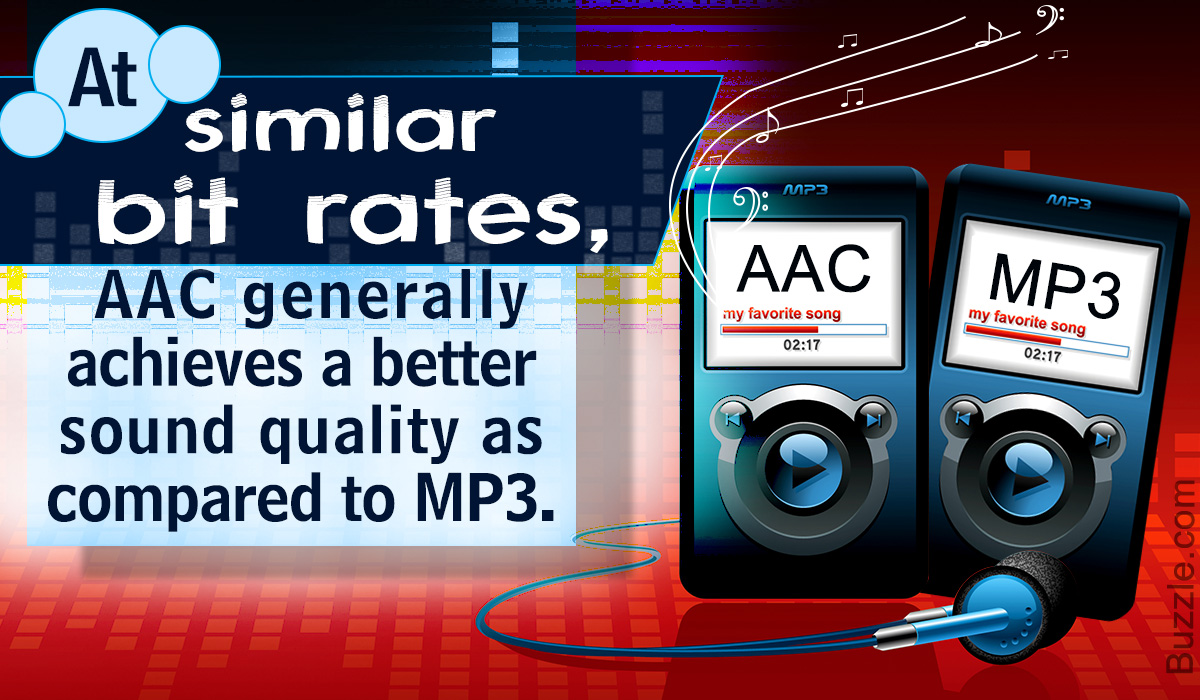
AAC stands for Advanced Audio Coding. It is a type of digital audio file that has been promoted as the successor to MP3. AAC generally provides higher quality sound than MP3 while using the same amount of disk space (or less).

Many people think that AAC is Apple’s proprietary format, but this is incorrect. AAC was developed by a group of companies that includes AT&T Bell Labs, Dolby, Nokia, and Sony. While Apple has embraced AAC music, AAC files can actually be played on many non-Apple devices, including phones running Google’s Android operating system, game consoles, and more.

How does the CAA work?
AAC is a lossy file format, just like MP3. To compress CD-quality audio into a file that takes up less storage space, data that will no longer affect the listening experience is typically removed at the high and low end. So AAC files don’t sound exactly the same as CD-quality files, but they generally sound good enough that most people won’t know the difference.

Like MP3, the quality of AAC files is measured by their bit rate. Common AAC bit rates include 128 kbps, 192 kbps, and 256 kbps.

How AAC works with Apple Music and iTunes
Apple has adopted AAC as its preferred audio file format. All songs streamed or downloaded from Apple Music, or sold on the iTunes store, are in AAC format. All AAC files provided by Apple are encoded at 256 kbps.

Other types of audio files supported by iPhone, iPad and Mac
While MP3 and AAC are the most popular audio files on iPhone, iPad, Mac, and other Apple products, they’re not the only ones that work. Let’s take a look at other widely used Apple supported audio formats.

What differentiates MP3 from AAC?

What differentiates MP3 from AAC?

AAC Vs. MP3

People often call any music file “MP3”, but that’s not accurate.

AAC vs MP3 320

MP3 is a specific type of audio file and not all digital audio files are MP3s. If you use an iPhone or other Apple device, chances are most of your music isn’t MP3.

So what kind of files are your digital songs? This article details the MP3 file type, the more advanced AAC format used by Apple, and some other common audio file types that can be used with or without iPhone and iPod.

What is mp3 and how does mp3 work?
MP3 is an acronym for MPEG-2 Audio Layer 3. It is a digital media standard devised by the Moving Picture Experts Group (MPEG), an industry group that creates technical standards.

Songs saved in MP3 format take up less space than songs saved in CD-quality audio formats like WAV (more on that later). They do this by compressing the data in the song. Compressing a song to MP3 requires removing parts of the file that don’t affect the listening experience, usually the loudest and quietest end of the audio. Because some data has been removed, and because the sound of MP3 is not the same as the CD-quality version, MP3 is called a “lossy” compression format. has led some audiophiles to criticize mp3 for impairing the listening experience, even though many can’t tell the difference.

Because mp3s are compressed, more mp3 files can be stored in the same amount of space than files using a lossless compression format. In general, MP3s take up 10% of the space of a CD-quality audio file. So if the CD quality version of a song is 10MB, the MP3 version is about 1MB (this can vary depending on your taste) Audio Encoding Settings

).​
Understanding bitrate and MP3
The audio quality of MP3s (and all digital music files) is measured by their bitrate. A higher bitrate means the file has more data and MP3s sound better. The most common bit rates are 128 kps, 192 kbps, and 256 kbps.

MP3 comes in two bit rates: constant bit rate (CBR) and variable bit rate (VBR). Many modern mp3s use VBR, which works by encoding parts of the song at a lower bit rate and at a higher bit rate. . smaller file. For example, a song with only one instrument is simpler and can be encoded at a lower bit rate. Parts of a song with more complex instruments require less compression to capture the full range. By changing the bitrate, the overall sound quality of the MP3 can be kept at a high level, while the file size can be further reduced.

Mp3: Audio Bitrate Calculator

Mp3: Audio Bitrate Calculator

bit rate mp3

Audio File Size Calculator Streaming Bitrate Calculator.

mp3 bit rate

Get the recommended high and low bitrate settings related to your network setup Audio Bitrate and File Size Calculator If the size of that audio file seems like a mystery, this is the tool you need to calculate the audio file size. The first part of the calculator calculates the bitrate of the uncompressed audio (for example, the size of the WAVE or BWF file). The second part calculates the file size for a given bit rate.
Audio Bitrate and File Size Calculator The Bitrate Calculator allows you to calculate the exact bitrate used to encode audio and video to achieve your desired file size. 3ivx MPEG-4 5.0 is the estimated audio size! Uncompressed audio bit rate. Per second: 48,000 24-bit samples; uncompressed bitrate for 1 channel:

Audio Bitrate and File Size Calculator, Audio Bitrate and File Size Calculator If the size of your audio files seems like a mystery, here are the tools you need to calculate your audio file size .

The first part of the calculator calculates the bitrate of the uncompressed audio (for example, the size of the WAVE or BWF file). The second part calculates the file size for a given bit rate. The Bitrate Calculator allows you to calculate the exact bitrate used to encode audio and video to achieve your desired file size. 3ivx MPEG-4 5.0 is a

Bitrate calculator estimates audio size! Uncompressed audio bit rate. Per second: 48,000 24-bit samples; 1-Channel Uncompressed Bitrate: In a simplified way, bitrate refers to the number of bits that can be transmitted or received per second. Bitrate is used to encode the number of bits into.
Bitrate Calculator The Bitrate Calculator allows you to calculate the exact bitrate used to encode audio and video to achieve the desired file size. 3ivx MPEG-4 5.0 is the estimated audio size! Uncompressed audio bit rate.

Per second: 48,000 24-bit samples; uncompressed bitrate for 1 channel:
Get the bitrate or bit depth of an audio wav file In simple terms, bitrate is the number of bits per second that can be transmitted or received. The bit rate is used to encode the number of bits. If the size of the audio file seems like a mystery, this is the tool you need to calculate the size of the audio file. The first part of the calculator counts bits.

Get the bitrate or bit depth of an audio wav file to estimate the size of the audio! Uncompressed audio bit rate. Per second: 48,000 24-bit samples; 1-Channel Uncompressed Bitrate: In a simplified way, bitrate refers to the number of bits that can be transmitted or received per second. Bitrate is used to encode the number of bits into.
Audio Bitrate Calculator – Inaudible Discussion If audio file size seems like a mystery, this is the tool you need to calculate audio file size.

The first part of the calculator calculates the bit rate for the DVB-S2, DVB-S2X and DVB-S standards, calculates the bit rate and bandwidth, the net bit rate, up to 32 APSK.

Audio Bitrate Calculator – Inaudible Discussion Put simply, bitrate refers to the number of bits per second that can be transmitted or received. The bit rate is used to encode the number of bits.

If the size of the audio file seems like a mystery, this is the tool you need to calculate the size of the audio file. The first part of the calculator counts bits.

44.1kHz PCM

44.1kHz PCM

PCM

In our experience, 16-bit and 44.1 kHz provide the best audio quality you can experience.

PCM

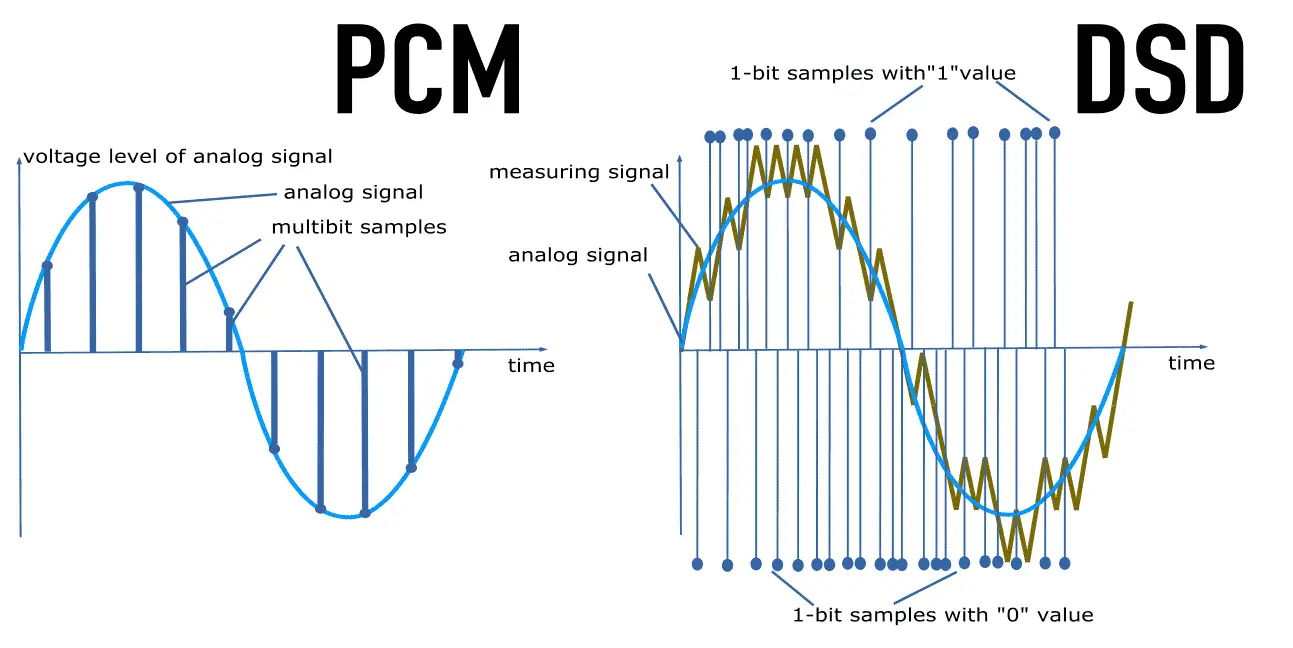
Anything beyond that format tends to waste disk capacity, since the 44.1 kHz HD sample rate originated with PCM adapters in the late 1970s that recorded digital audio onto video tape, especially the Sony PCM-1600 introduced in 1979 and introduced in this series It has flourished in later models. This became the basis for Compact Disc Digital Audio (CD-DA) as defined in the 1980 Red Book standard. In other words, the digital audio standard for CD audio is 44.1 kHz/16 bits. PCM Audio and Home Theater PCM is used for CD, DVD, Blu-ray and other digital audio applications. When used in surround sound applications, it is often called Linear Pulse Code Modulation (LPCM). The reason for this is that in the past, computer sound cards could only handle 48kHz PCM data, so the 44.1kHz PCM data had to be resampled, which would consume processing power. So the CD-ROM drive has an audio cable that feeds the analog audio to the sound card for playback, avoiding the need for resampling.

The 44.1 kHz sample rate originated with PCM adapters in the late 1970s that recorded digital audio to videotape, notably the Sony PCM-1600 introduced in 1979, and carried over to later models of the Serie. This became the basis for Compact Disc Digital Audio (CD-DA) as defined in the 1980 Red Book standard. In other words, the digital audio standard for CD audio is 44.1 kHz/16 bits. PCM Audio and Home Theater PCM is used for CD, DVD, Blu-ray and other digital audio applications. When used in surround sound applications, it is often called Linear Pulse Code Modulation (LPCM). The reason for this is that, in the past, computer sound cards could only handle 48kHz PCM data, so the 44.1kHz PCM data had to be resampled, which would consume processing power. . So the CD-ROM drive has an audio cable that feeds the analog audio to the sound card for playback, avoiding the need for resampling. Pulse Code Modulation (PCM) or 44.1 kHz used on CD. Some devices may use a 96kHz or 192kHz sample rate, but the advantage is that

In other words, the digital audio standard for CD audio is 44.1 kHz/16 bits. PCM Audio and Home Theater PCM is used for CD, DVD, Blu-ray and other digital audio applications. When used in surround sound applications, it is often called Linear Pulse Code Modulation (LPCM). The reason for this is that, in the past, computer sound cards could only handle 48kHz PCM data, so the 44.1kHz PCM data had to be resampled, which would consume processing power. . So the CD-ROM drive has an audio cable that feeds the analog audio to the sound card for playback, avoiding the need for resampling.