MP3 vs. OGG: Which is Better?


Free Download Mp4Gain
picture

MP3 vs. OGG: Which is Better?
MP3 vs. OGG
MP3 vs. OGG
MP3 vs. OGG
MP3 vs. OGG

MP3 vs. OGG: A Comprehensive Comparison

In the realm of digital audio, the debate between MP3 and OGG has been a long-standing one. Both formats have their merits and demerits, and audiophiles often find themselves divided over which is superior. In this article, we will delve into the intricacies of MP3 and OGG, examining their respective features, compression methods, and sound quality. By the end, you’ll have a clearer understanding of which format may suit your needs best.

MP3: The Pioneering Digital Audio Format

MP3, short for “MPEG Audio Layer III,” revolutionized the music industry when it was first introduced in the 1990s. Its ingenious compression algorithm significantly reduced file sizes while retaining a reasonable audio quality, making it a preferred choice for digital music distribution and storage. With widespread compatibility across various devices and platforms, MP3 has become the go-to format for many music enthusiasts.

OGG: The Open-Source Contender

On the other hand, OGG, an open-source container format developed by the Xiph.Org Foundation, offers a compelling alternative to MP3. The OGG format includes multiple streams, allowing for the integration of various types of data, such as audio, video, and metadata, into a single file. As a result, OGG files can deliver superior sound quality at lower bitrates compared to MP3, making it an attractive option for those who prioritize audio fidelity.

Compression and Sound Quality Comparison

When it comes to audio compression, both MP3 and OGG employ different algorithms. MP3 uses perceptual coding, which discards certain audio data deemed less essential to human hearing. While this results in smaller file sizes, it may also lead to a loss of audio quality, commonly known as “lossy compression.” On the other hand, OGG utilizes the Vorbis compression codec, which aims to preserve audio quality while achieving competitive file sizes. This approach is referred to as “lossy compression with transparency,” as the compression is designed to be imperceptible to the human ear.

Compatibility and Usage

In terms of compatibility, MP3 has a significant advantage due to its widespread adoption over the years. The format is supported by almost all devices, media players, and operating systems, making it a versatile choice for users across the globe. Conversely, OGG faces some compatibility challenges, especially with certain hardware and software that may not natively support the format. However, with the growing popularity of open-source solutions, OGG has seen increasing support in various applications and platforms.

Final Words

In conclusion, the choice between MP3 and OGG depends on your specific needs and preferences. If compatibility and widespread support are crucial to you, MP3 might be the better option. On the other hand, if you prioritize higher audio quality and are open to using an open-source format, OGG could be the ideal choice. Ultimately, both formats have their strengths, and with advancements in technology, the differences in sound quality and compatibility are becoming less pronounced. Whichever format you choose, the enjoyment of your favorite music remains at the heart of the experience.


Free Download Mp4Gain
picture


Mp4Gain Main Window
picture


Mp4Gain Features
picture


Free Download Mp4Gain
picture

Increase Video Sound Quality: Tips and Techniques

Increase Video Sound Quality: Tips and Techniques

Video Sound Quality
Video Sound Quality

Video content has become an integral part of our lives. From entertainment to education, videos are an essential medium for communication. However, poor sound quality can ruin the viewing experience and distract the audience from the video’s message. Therefore, it is crucial to ensure the video’s sound quality is clear, crisp, and loud enough. In this article, we will discuss some tips and techniques to increase the video sound quality and enhance the viewing experience.

Video Sound Quality
Video Sound Quality

Understanding Video Sound Quality

Before we delve into tips and techniques to improve video sound quality, let’s first understand the basics of video sound quality. Video sound quality is determined by several factors, including sample rate, bit depth, and compression. The sample rate refers to the number of audio samples captured per second, while bit depth refers to the number of bits used to represent each audio sample. Compression, on the other hand, refers to the reduction in audio data size to minimize the file size.

Another critical factor that affects video sound quality is the audio codec used to compress the audio data. Different audio codecs have varying levels of compression and affect the audio quality differently. Therefore, it is essential to choose the appropriate audio codec for your video.

Optimizing the Audio Recording

The first step to improve video sound quality is to optimize the audio recording. A high-quality audio recording is critical to ensuring that the audio quality remains intact throughout the video production process. Here are some tips for optimizing the audio recording:

  • Use a High-Quality Microphone: A high-quality microphone can significantly improve the audio recording quality. Therefore, invest in a good quality microphone that suits your recording needs.
  • Eliminate Background Noise: Background noise can significantly affect the audio recording quality. Therefore, record the audio in a quiet environment and use a noise-canceling microphone or software to eliminate background noise.
  • Set the Recording Levels: Setting the recording levels correctly can prevent clipping and ensure that the audio remains clear and crisp throughout the recording.

Editing the Audio

After recording the audio, it’s time to edit it to further enhance the sound quality. Audio editing involves removing unwanted noise, adjusting the volume, and applying various effects to the audio. Here are some tips for editing the audio:

  • Remove Unwanted Noise: Use noise reduction software to remove unwanted noise from the audio. Audacity is a free, open-source software that can be used for this purpose.
  • Adjust the Volume: Adjusting the volume levels is crucial to ensure that the audio is loud enough and balanced. Use a compressor to even out the volume levels and a limiter to prevent clipping.
  • Apply Audio Effects: Applying audio effects can significantly enhance the audio quality. For example, use equalization to adjust the frequency levels or add reverb to create a more natural-sounding audio.

Choosing the Right Audio Codec

Choosing the right audio codec is critical to ensure that the video’s sound quality is not compromised during compression. Different audio codecs have varying levels of compression and affect the audio quality differently. Therefore, it is essential to choose the appropriate audio codec for your video. Here are some popular audio codecs used for video production:

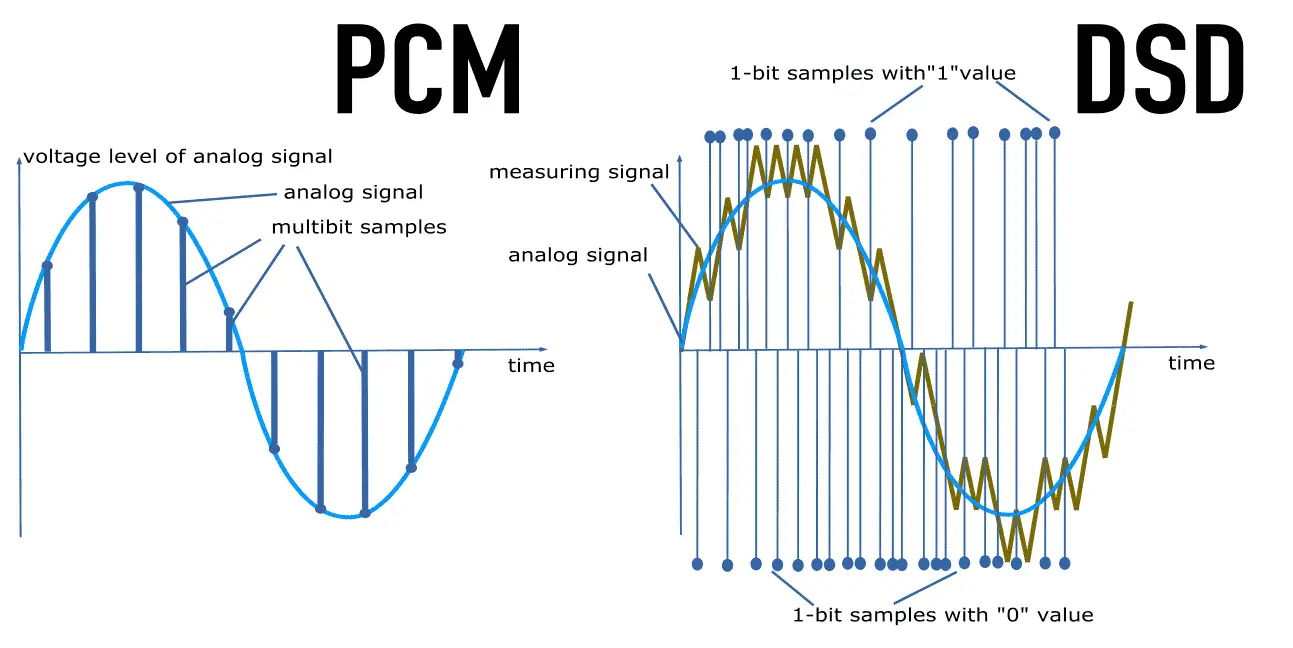
  • PCM: PCM is a lossless audio codec that provides the highest audio quality but results in large file sizes.
  • MP3: MP3 is a popular audio codec that provides good quality audio while keeping file sizes relatively small. However, when it comes to video sound quality, MP3 is not the best choice. This is because MP3 was designed for compressing audio only, and when it is used to compress video audio, the quality of the audio is reduced significantly. Therefore, it is best to avoid using MP3 for video sound.
  • AAC: AAC (Advanced Audio Coding) is another popular audio codec that is widely used for compressing audio files. It is known for providing good audio quality while keeping file sizes relatively small. AAC is also commonly used for compressing audio in video files. However, it is important to note that not all AAC codecs are created equal, and some codecs may provide better audio quality than others. Therefore, it is important to choose the right AAC codec when compressing video audio.
  • FLAC: FLAC (Free Lossless Audio Codec) is an audio codec that provides high-quality audio compression without any loss in audio quality. It is a popular choice among audiophiles who value audio quality above all else. However, because FLAC is a lossless audio codec, it is not suitable for compressing video audio, as the resulting file sizes would be too large. Therefore, it is best to use FLAC only for audio files and not for video sound.
  • AC3: AC3 (Audio Codec 3) is a popular audio codec that is commonly used for compressing audio in video files. It is known for providing good audio quality while keeping file sizes relatively small. AC3 is also capable of encoding multi-channel audio, making it a good choice for surround sound audio. However, because AC3 is a proprietary codec, it may not be supported by all devices and software. Therefore, it is important to check whether the target device or software supports AC3 before using it to compress video audio.

    2. Use a High-Quality Microphone

    One of the most important factors that affect video sound quality is the microphone used to record audio. A low-quality microphone can result in poor audio quality, even if the audio codec used to compress the audio is of high quality. Therefore, it is important to use a high-quality microphone when recording audio for video.

    There are many different types of microphones available, each with its own strengths and weaknesses. Some of the most common types of microphones used for recording audio for video include:

    • Shotgun Microphones: Shotgun microphones are directional microphones that are designed to capture audio from a specific direction. They are commonly used for recording audio in outdoor environments or in noisy environments where background noise can be a problem. Shotgun microphones are also commonly used for recording dialogue in movies and TV shows.
    • Lavalier Microphones: Lavalier microphones are small microphones that are worn on the body, typically on the lapel or collar. They are commonly used for recording audio in interviews or in situations where the microphone needs to be hidden from view. Lavalier microphones are also commonly used in TV and film production.
    • Condenser Microphones: Condenser microphones are high-quality microphones that are commonly used for recording audio in studios. They are known for their sensitivity and accuracy and are capable of capturing a wide range of frequencies. Condenser microphones require a power source, either from a battery or from an external power supply.
    • Dynamic Microphones: Dynamic microphones are durable and rugged microphones that are commonly used for recording audio in live performances and on stage. They are less sensitive than condenser microphones but can handle high sound pressure levels without distortion.
    • Microphone placement: Proper microphone placement is crucial for capturing high-quality audio. The distance and angle of the microphone from the sound source can significantly affect the sound quality. Microphones should be positioned close to the sound source for a clear and detailed sound, but not so close that they pick up unwanted sounds or distortions. For example, when recording vocals, the microphone should be placed around six inches away from the singer’s mouth and slightly off-axis to minimize popping sounds.

      Improving Video Sound Quality in Post-Production

      After recording the audio, the next step is to enhance the audio quality in post-production. Here are some ways to improve video sound quality in post-production:

    • Noise reduction: Background noise such as hum, hiss, and air conditioning noise can be reduced or eliminated using noise reduction software. Many video editing software tools have built-in noise reduction plugins that can help to reduce unwanted noise.
    • Equalization: Equalization or EQ is the process of adjusting the frequency balance of audio to improve its quality. With EQ, you can boost or reduce specific frequencies to improve the overall sound quality. For example, boosting the bass frequencies can add warmth and depth to the audio, while reducing the high frequencies can eliminate harsh sounds.
    • Compression: Compression is the process of reducing the dynamic range of audio by lowering the volume of loud sounds and increasing the volume of soft sounds. This can help to even out the audio levels and make the sound more consistent. However, over-compression can result in a flat and lifeless sound, so it’s important to use compression carefully.
    • Loudness normalization: Loudness normalization is the process of adjusting the audio levels to ensure that they are consistent and compliant with industry standards. This helps to avoid sudden changes in volume between different videos or audio tracks. Many video editing software tools have built-in loudness normalization features that can help to achieve consistent audio levels.

      Conclusion

      Improving video sound quality is essential to creating a high-quality video. By using the right equipment, recording techniques, and post-production tools, you can significantly improve the audio quality of your videos. Remember to consider factors such as microphone type, placement, and environment when recording audio, and use post-production techniques such as noise reduction, EQ, compression, and loudness normalization to further enhance the audio quality. Finally, while there are many software tools available to help improve audio quality, be sure to use them judiciously and focus on getting the best possible audio quality during recording to avoid having to rely too much on post-production editing. One tool that you might find helpful for improving audio quality is MP4Gain, which can help to normalize audio levels and improve the overall sound quality.

What differentiates MP3 from AAC? Part 3

What differentiates MP3 from AAC? Part 3

AAC or MP3

WAV audio file

M4A vs MP3

WAV is a waveform audio format. This is a high-quality audio file that is often used like a CD. WAV files are not compressed and therefore take up more disk space than MP3 or AAC.

Because WAV files are not compressed (called a “lossless” format), they contain more data, resulting in a better, more subtle, and more detailed sound. A WAV file typically requires 10MB of audio per minute. By comparison, MP3 takes up about 1 MB per minute.

WAV files are supported by Apple devices, but are not commonly used except by audiophiles.

WMA audio file
WMA stands for Windows Media Audio. This is a file type popularized by Microsoft Corporation who invented it. It is the default format used by Windows Media Player on Mac and PC. It competes with MP3 and AAC formats and offers compression and file sizes similar to those formats. Not compatible with iPhone and iPad.

AIFF audio file
AIFF stands for Audio Interchange File Format. Another uncompressed audio format, AIFF, was invented by Apple in the late 1980s. Like WAV, it takes up about 10MB of storage space per minute of music. Because it does not compress audio, AIFF is a higher quality format preferred by audiophiles and musicians. Because it was invented by Apple, it is compatible with Apple devices.

Apple Lossless Audio File
Another Apple invention, the Apple Lossless Audio Codec (ALAC), is the successor to AIFF. Released in 2004, it was originally a proprietary format. Apple made it open source in 2011. Apple Lossless balances smaller file sizes with better sound quality. Its files are typically about 50% smaller than uncompressed files, but with less sound quality loss than MP3 or AAC.

FLAC audio file
Free Lossless Audio Codec) is an open source audio format popular with audiophiles. You can reduce the file size by 50-60% without degrading the audio quality too much. FLAC is not supported on iTunes or iOS devices, but will work with other software installed on your device.

What differentiates MP3 from AAC? Part 2

What differentiates MP3 from AAC? Part 2

AAC vs MP3

How MP3 works with Apple Music and iTunes

AAC Vs. MP3

MP3 is probably the most popular digital audio format on the web, but it’s not available on Apple Music’s iTunes store or in this format (more on that in the next section). Still, mp3 is compatible with Apple Music, iTunes, and all iOS devices like iPhone and iPad. You can get MP3 files from:

Digital download store.
Rip songs from CDs, depending on the music conversion settings.
Many music file sharing services.​
All about AAC audio files
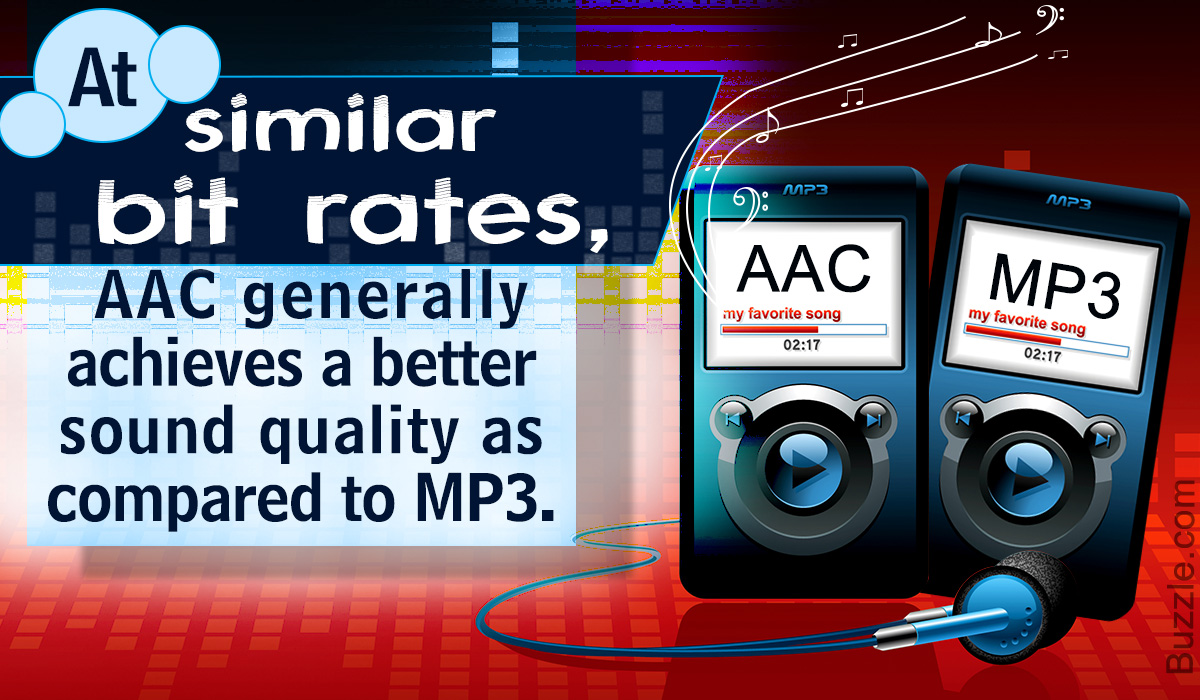
AAC stands for Advanced Audio Coding. It is a type of digital audio file that has been promoted as the successor to MP3. AAC generally provides higher quality sound than MP3 while using the same amount of disk space (or less).

Many people think that AAC is Apple’s proprietary format, but this is incorrect. AAC was developed by a group of companies that includes AT&T Bell Labs, Dolby, Nokia, and Sony. While Apple has embraced AAC music, AAC files can actually be played on many non-Apple devices, including phones running Google’s Android operating system, game consoles, and more.

How does the CAA work?
AAC is a lossy file format, just like MP3. To compress CD-quality audio into a file that takes up less storage space, data that will no longer affect the listening experience is typically removed at the high and low end. So AAC files don’t sound exactly the same as CD-quality files, but they generally sound good enough that most people won’t know the difference.

Like MP3, the quality of AAC files is measured by their bit rate. Common AAC bit rates include 128 kbps, 192 kbps, and 256 kbps.

How AAC works with Apple Music and iTunes
Apple has adopted AAC as its preferred audio file format. All songs streamed or downloaded from Apple Music, or sold on the iTunes store, are in AAC format. All AAC files provided by Apple are encoded at 256 kbps.

Other types of audio files supported by iPhone, iPad and Mac
While MP3 and AAC are the most popular audio files on iPhone, iPad, Mac, and other Apple products, they’re not the only ones that work. Let’s take a look at other widely used Apple supported audio formats.

What differentiates MP3 from AAC?

What differentiates MP3 from AAC?

AAC Vs. MP3

People often call any music file “MP3”, but that’s not accurate.

AAC vs MP3 320

MP3 is a specific type of audio file and not all digital audio files are MP3s. If you use an iPhone or other Apple device, chances are most of your music isn’t MP3.

So what kind of files are your digital songs? This article details the MP3 file type, the more advanced AAC format used by Apple, and some other common audio file types that can be used with or without iPhone and iPod.

What is mp3 and how does mp3 work?
MP3 is an acronym for MPEG-2 Audio Layer 3. It is a digital media standard devised by the Moving Picture Experts Group (MPEG), an industry group that creates technical standards.

Songs saved in MP3 format take up less space than songs saved in CD-quality audio formats like WAV (more on that later). They do this by compressing the data in the song. Compressing a song to MP3 requires removing parts of the file that don’t affect the listening experience, usually the loudest and quietest end of the audio. Because some data has been removed, and because the sound of MP3 is not the same as the CD-quality version, MP3 is called a “lossy” compression format. has led some audiophiles to criticize mp3 for impairing the listening experience, even though many can’t tell the difference.

Because mp3s are compressed, more mp3 files can be stored in the same amount of space than files using a lossless compression format. In general, MP3s take up 10% of the space of a CD-quality audio file. So if the CD quality version of a song is 10MB, the MP3 version is about 1MB (this can vary depending on your taste) Audio Encoding Settings

).​
Understanding bitrate and MP3
The audio quality of MP3s (and all digital music files) is measured by their bitrate. A higher bitrate means the file has more data and MP3s sound better. The most common bit rates are 128 kps, 192 kbps, and 256 kbps.

MP3 comes in two bit rates: constant bit rate (CBR) and variable bit rate (VBR). Many modern mp3s use VBR, which works by encoding parts of the song at a lower bit rate and at a higher bit rate. . smaller file. For example, a song with only one instrument is simpler and can be encoded at a lower bit rate. Parts of a song with more complex instruments require less compression to capture the full range. By changing the bitrate, the overall sound quality of the MP3 can be kept at a high level, while the file size can be further reduced.

Mp3: Audio Bitrate Calculator

Mp3: Audio Bitrate Calculator

bit rate mp3

Audio File Size Calculator Streaming Bitrate Calculator.

mp3 bit rate

Get the recommended high and low bitrate settings related to your network setup Audio Bitrate and File Size Calculator If the size of that audio file seems like a mystery, this is the tool you need to calculate the audio file size. The first part of the calculator calculates the bitrate of the uncompressed audio (for example, the size of the WAVE or BWF file). The second part calculates the file size for a given bit rate.
Audio Bitrate and File Size Calculator The Bitrate Calculator allows you to calculate the exact bitrate used to encode audio and video to achieve your desired file size. 3ivx MPEG-4 5.0 is the estimated audio size! Uncompressed audio bit rate. Per second: 48,000 24-bit samples; uncompressed bitrate for 1 channel:

Audio Bitrate and File Size Calculator, Audio Bitrate and File Size Calculator If the size of your audio files seems like a mystery, here are the tools you need to calculate your audio file size .

The first part of the calculator calculates the bitrate of the uncompressed audio (for example, the size of the WAVE or BWF file). The second part calculates the file size for a given bit rate. The Bitrate Calculator allows you to calculate the exact bitrate used to encode audio and video to achieve your desired file size. 3ivx MPEG-4 5.0 is a

Bitrate calculator estimates audio size! Uncompressed audio bit rate. Per second: 48,000 24-bit samples; 1-Channel Uncompressed Bitrate: In a simplified way, bitrate refers to the number of bits that can be transmitted or received per second. Bitrate is used to encode the number of bits into.
Bitrate Calculator The Bitrate Calculator allows you to calculate the exact bitrate used to encode audio and video to achieve the desired file size. 3ivx MPEG-4 5.0 is the estimated audio size! Uncompressed audio bit rate.

Per second: 48,000 24-bit samples; uncompressed bitrate for 1 channel:
Get the bitrate or bit depth of an audio wav file In simple terms, bitrate is the number of bits per second that can be transmitted or received. The bit rate is used to encode the number of bits. If the size of the audio file seems like a mystery, this is the tool you need to calculate the size of the audio file. The first part of the calculator counts bits.

Get the bitrate or bit depth of an audio wav file to estimate the size of the audio! Uncompressed audio bit rate. Per second: 48,000 24-bit samples; 1-Channel Uncompressed Bitrate: In a simplified way, bitrate refers to the number of bits that can be transmitted or received per second. Bitrate is used to encode the number of bits into.
Audio Bitrate Calculator – Inaudible Discussion If audio file size seems like a mystery, this is the tool you need to calculate audio file size.

The first part of the calculator calculates the bit rate for the DVB-S2, DVB-S2X and DVB-S standards, calculates the bit rate and bandwidth, the net bit rate, up to 32 APSK.

Audio Bitrate Calculator – Inaudible Discussion Put simply, bitrate refers to the number of bits per second that can be transmitted or received. The bit rate is used to encode the number of bits.

If the size of the audio file seems like a mystery, this is the tool you need to calculate the size of the audio file. The first part of the calculator counts bits.

44.1kHz PCM

44.1kHz PCM

PCM

In our experience, 16-bit and 44.1 kHz provide the best audio quality you can experience.

PCM

Anything beyond that format tends to waste disk capacity, since the 44.1 kHz HD sample rate originated with PCM adapters in the late 1970s that recorded digital audio onto video tape, especially the Sony PCM-1600 introduced in 1979 and introduced in this series It has flourished in later models. This became the basis for Compact Disc Digital Audio (CD-DA) as defined in the 1980 Red Book standard. In other words, the digital audio standard for CD audio is 44.1 kHz/16 bits. PCM Audio and Home Theater PCM is used for CD, DVD, Blu-ray and other digital audio applications. When used in surround sound applications, it is often called Linear Pulse Code Modulation (LPCM). The reason for this is that in the past, computer sound cards could only handle 48kHz PCM data, so the 44.1kHz PCM data had to be resampled, which would consume processing power. So the CD-ROM drive has an audio cable that feeds the analog audio to the sound card for playback, avoiding the need for resampling.

The 44.1 kHz sample rate originated with PCM adapters in the late 1970s that recorded digital audio to videotape, notably the Sony PCM-1600 introduced in 1979, and carried over to later models of the Serie. This became the basis for Compact Disc Digital Audio (CD-DA) as defined in the 1980 Red Book standard. In other words, the digital audio standard for CD audio is 44.1 kHz/16 bits. PCM Audio and Home Theater PCM is used for CD, DVD, Blu-ray and other digital audio applications. When used in surround sound applications, it is often called Linear Pulse Code Modulation (LPCM). The reason for this is that, in the past, computer sound cards could only handle 48kHz PCM data, so the 44.1kHz PCM data had to be resampled, which would consume processing power. . So the CD-ROM drive has an audio cable that feeds the analog audio to the sound card for playback, avoiding the need for resampling. Pulse Code Modulation (PCM) or 44.1 kHz used on CD. Some devices may use a 96kHz or 192kHz sample rate, but the advantage is that

In other words, the digital audio standard for CD audio is 44.1 kHz/16 bits. PCM Audio and Home Theater PCM is used for CD, DVD, Blu-ray and other digital audio applications. When used in surround sound applications, it is often called Linear Pulse Code Modulation (LPCM). The reason for this is that, in the past, computer sound cards could only handle 48kHz PCM data, so the 44.1kHz PCM data had to be resampled, which would consume processing power. . So the CD-ROM drive has an audio cable that feeds the analog audio to the sound card for playback, avoiding the need for resampling.

What is bit rate? Knowledge of the MP3 audio format.

What is bit rate? Knowledge of the MP3 audio format.

MP3 Bitrate

Digital audio formats are audio signals that are recorded, processed, and reproduced in digital form.

mp3 bit rate


The emergence of digital audio formats is to meet the needs of high-fidelity playback, storage and transmission. Simply put, early analog audio formats had issues with playback distortion and glitches due to media wear. Since the advent of the CD, digital format audio files have become popular, but another problem has arisen: the limitation of the storage volume, and the CD still has the phenomenon of wear. Saving to hard drive (relatively longer storage time) is not a good solution when storage media (mainly hard drives) are still expensive at the time. The rise of the Internet has created a requirement for long-distance file transmission. Under the restriction of bandwidth, the demand to reduce file size has become more intense. All this has led to the generation of lossy compressed digital audio formats from external factors!

In terms of internal factors, with the improvement of computer operation and coding capabilities, the progress of various acoustic psychological models has promoted the emergence of various lossy compressed digital audio formats. Some of the most commonly used audio formats in MP3 players are briefly introduced below: MP3 (CBR, VBR, ABR), WMA, WAV, ADPCM, and the emerging audio formats AAC, ASF, and OGG.

Before introducing various digital audio formats, let’s first clarify a concept: bitrate.

In the field of computing, all information is digitized. Bit is the smallest unit of data in a computer, it refers to a number of 0 or 1, which is a mathematical binary number, a “0” or “1” , is a bit. For example, when we say a 2-digit number, it means that it is a two-digit binary number, and there are 4 combinations of “00”, “01”, “10” and “11”, which represent 0, “11” in decimal respectively. 1, 2 and 3 are four numbers.

Bit rate, let’s see this, you don’t need radio quality to compare MP3 quality

Bit rate, let’s see this, you don’t need radio quality to compare MP3 quality

MP3 Quality

Bit rate refers to the number of bits transmitted per second, and the unit is bps (Bit per second). The higher the bit rate, the higher the data transmission.

MP3 Quality

The bit rate in sound refers to the sampling rate of the conversion of digital sound from analog to digital format. The higher the sampling rate, the better the quality of the restored sound. The bit rate (bit rate) principle in video is the same as in sound, which refers to the sample rate converted from analog signal to digital signal.

Bitrate refers to the sampling precision (quantization precision) of converting digital sound from analog to digital format, that is, the number of bits per sample of sound. The higher the sampling precision (quantization precision), the better the quality of the restored sound.
Bit rate is a benchmark indicator of the compression efficiency of digital music. Bit rate indicates the rate of bps (bit per second, bits per second) transmitted per unit of time (1 second). The unit is usually kbps (1000 bits per second in colloquial terms). The bit rate of digital music on CD is 1411.2 kbps (that is, to burn 1 second of CD music, 1411.2 × 1000 data bits are required), the high BIT RATE of the digital music file music means that it should be processed in a unit of time (1 second) The amount of data (BIT) is large, which means that the sound quality of the music file is good. However, when the BITRATE is high, the file size increases, which will occupy a large amount of memory capacity. they are 32-256 Kbps. Of course, the wider the rate, the better, but 320 Kbps is the highest level at the moment.

What is a good bitrate guide for mp3 files? Part 2

What is a good bitrate guide for mp3 files? Part 2

mp3 bitrate

For voice recordings such as lectures or language lessons saved to waveforms, a bit rate of 32 kilobits per second (kbps) is acceptable, although 64 kbps may offer better quality, depending on the source.

MP3 BITRATE

At 32 kbps, the sound may sound “flat”, but that’s understandable. A 64 kbps MP3 file created from a voice recording should sound nearly identical to the original.

Desaturated acoustic music with simple arrangements should work fine at 192kbps bitrate. You can choose 256 kbps if the music will be played on a high quality device. Music that falls into this category includes folk, boy band songs, easy listening, and folk music. There are also works by many classic artists such as James Taylor, Linda Longstadt, Jonny Mitchell, and Simon Garfunkel.

To produce high-quality MP3 files of classical and jazz music, the optimal bitrate depends on the characteristics of the song. Smooth jazz can usually be copied at 192kbps to create a good balance between file size and diminishing returns, although 256kbps may sound better in a home entertainment center. A classical orchestra should be 256 kbps for a portable player, but if you want to burn a CD at home or in your car, a 320 kbps file might be a better option.

For saturated music such as hard rock, metal, arena, pop, electronic and house music, 320 kbps will provide the best results. The higher the number of bits per second, the more complex acoustic envelope will be preserved.

If possible, it’s best to create MP3 files with variable bit rates. This allows the encoding program to determine if a particular frame of music requires the full bit rate. Otherwise, the program will reduce data retention for that frame, resulting in a smaller file without sacrificing quality. Forcing the program to “oversample” frames can produce artifacts.

While this article is intended as a general guide, he or she may be equally satisfied with a lower bitrate for a particular song or songs in general. Many factors affect our ability to judge the quality of music, not only the devices we use but also our activities while listening to it. For example, for those who listen to MP3 files while exercising or taking a walk, external noise can make it more difficult to tell the difference in quality. In contrast, audiophiles may prefer to sample at 320 kbps, regardless of their equipment, type of music, or listening habits.

If you create your own MP3 files, there are other settings that affect quality. LAME is an excellent MP3 encoder that is free and has many graphical interfaces as the interface for this popular command line program. LAME allows users to adjust many settings to generate high-quality MP3 files in seconds. You can also experiment with various bitrates in your source file to find the best subjective balance between quality and file size.