Video frame rate, resolution, bit rate


Free Download Mp4Gain
picture

Video frame rate, resolution, bit rate

bITrATE

Frames per second

bitrate

When “Let’s make a video”, the video format is:
-Video format (container) = MP4 (.mp4) -Video format
video compression (video codec) = H.264
-Audio compression format (audio codec) = AAC
It is an option. (The video format is summarized here). Later
, what needs to be configured after that is:
・ Frame rate
・ Resolution
・ Bit rate
. Here I would like to summarize this setup.

Table of Contents
1. 1. frames per second
2. 2. Resolution (angle of view)
3. 3. bit rate
4. Profile, level
1. 1. frames per second
Frame rate is an important setting factor that affects the “smoothness” and file size of videos. The unit is fps (frames / second). You can also tell how many still image frames are embedded per second.

A moving image uses the image persistence phenomenon of the human eye to display still images continuously so that they can be recognized as a moving image. It is said that the ability of the human eye can recognize up to 60 fps. So if you create a video at 60fps, you can tell that the video doesn’t look jerky.
On the other hand, this frame rate has a great effect on file size. Since it is necessary to save 60 still images in 1 second at 60 fps and 1 still image in 1 second at 1 fps, the file size varies greatly depending on the frame rate.
Generally, TVs and DVDs use 30 fps (29.97 fps) and most of them are set to 30 fps (29.97 fps) or less.
Unless you really need to reduce the file size, try specifying this 30fps (29.97fps).
For reference when setting less than 30 fps (29.97 fps), 24 fps for movies and 15 fps for 1Seg TV. It is said that it can be lowered to 15 fps for videos with little movement, such as a person sitting and talking. If you set it to 10fps or less, it will no longer be a video but a slideshow level, and it will definitely look jerky. The lowest line for video is around 15fps.

On the other hand, for videos with a lot of movement, such as sports and actions, you may feel that 30 fps (29.97 fps) at the TV or DVD level is not enough. The file size will be large and it will be difficult to send and receive on the internet line, but if image quality is prioritized, it is worth setting it to 60fps.
Current playback devices that support 120fps are still rare, but next-gen TV streaming standards, 4K and 8K streams are specified up to 120fps.
2. 2. Resolution (angle of view)
It can also be said that it is the size of the area where the video is displayed. In terms of TV streaming,
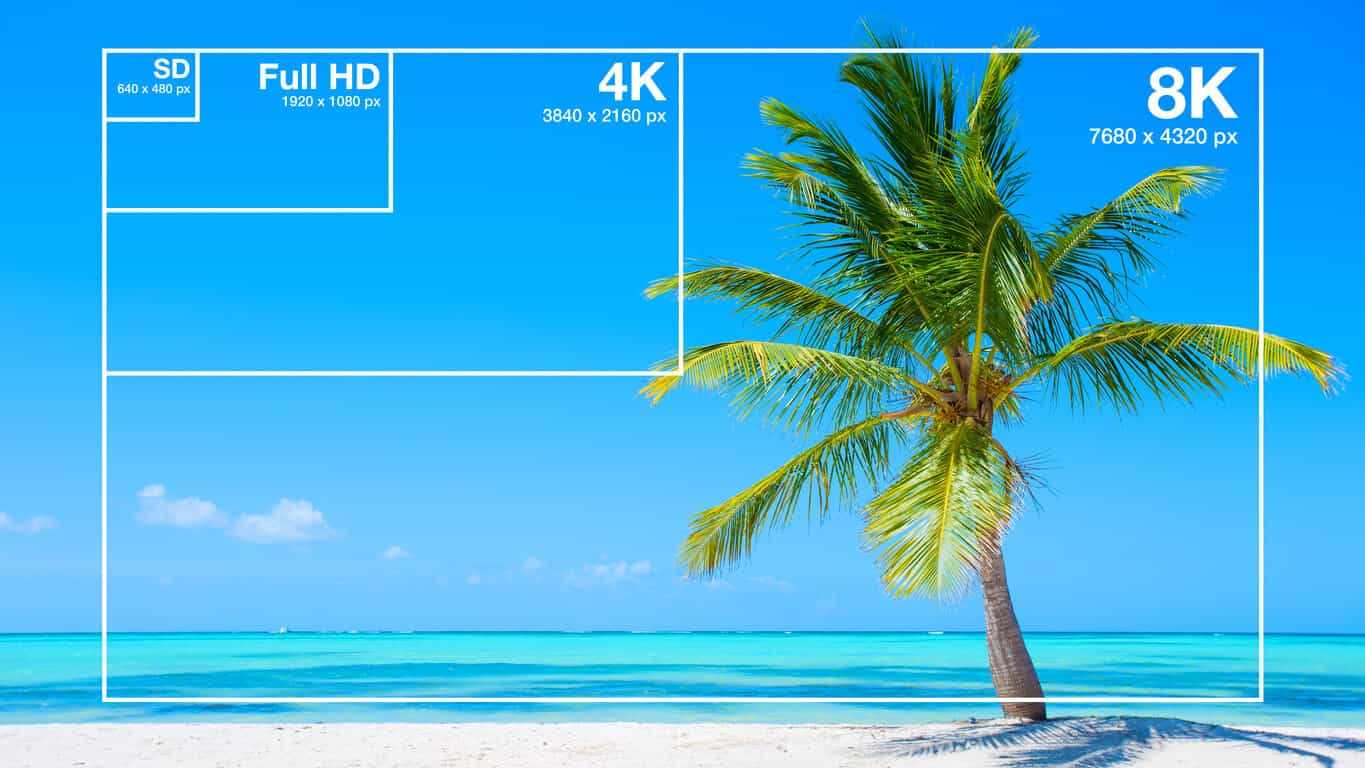
1Seg → SD → HD → Full HD → 2K → 4K → 8K Custom
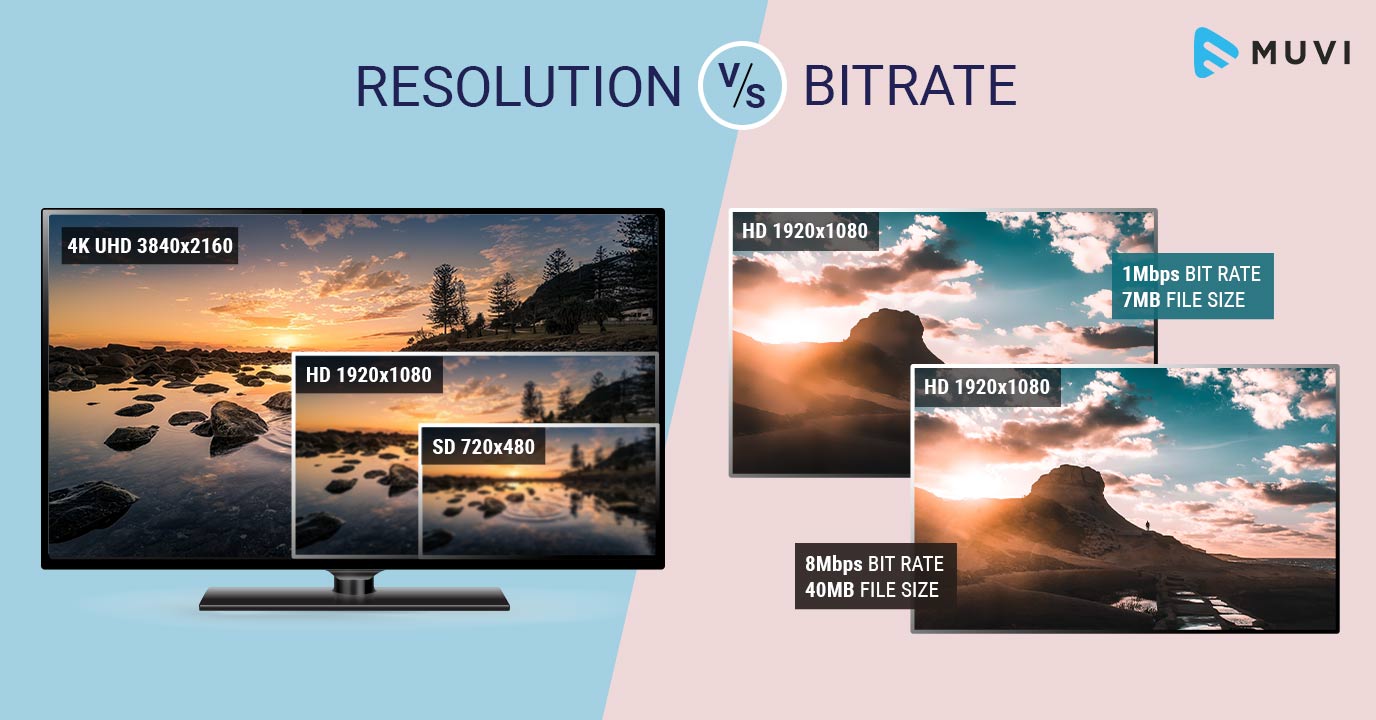
As the resolution increases, the rendering area increases, so the video file size naturally increases accordingly.

Resolution (angle of view) TV broadcast Compatible storage devices
SD (720 px x 480 px) Analog broadcast DVD
HD (1280px x 720px) HDTV broadcast
* mainly in Europe ――――
Full HD (1920px x 1080px) High definition transmission
* Japan, strictly speaking,
High Definition BS: 1920px x 1080px Transmission
digital terrestrial: 1440px x 1080px Blu-ray Disc
(BD)
4K UHD (3840px x 2160px) 4K UHD streaming means Ultra HD.
Streaming started on December 1, 2018 with the Next Generation Streaming Standard. Ultra HD Blu-ray Disc
(UHD BD)
8K UHD (7680px x 4320px) 8K Transmission As with
4K, streaming started on December 1, 2018. Unknown current status

When considering Internet video usage, YouTube’s maximum resolution is Full HD (HD1080). With reference to this, if resolution is prioritized, it should be set to Full HD, and if file size is prioritized, it should be set to SD or less.

aspect ratio
It is the aspect ratio of the resolution (angle of view). 16: 9 is the standard for televisions, and 16: 9 monitors have become mainstream for personal computers, but there are still products with aspect ratios such as 16:10 and 4: 3, iPhone 3: 2, and Andoroid 16. : is not unified like 9.
Therefore, if the prepared video file has a 16: 9 aspect ratio and the aspect ratio of the device to be played is different, it will be played by expanding / contracting, making margins, etc. on the side of the playback device.
When uploaded to YouTube, videos other than 16: 9 are automatically rendered with black frames at the top, bottom, left, and right.
For those who create and prepare videos, it is very kind to prepare a video file with each aspect ratio, but if not


Free Download Mp4Gain
picture


Mp4Gain Main Window
picture


Mp4Gain Features
picture


Free Download Mp4Gain
picture

What is a bit rate?

What is a bit rate? What if it is tall?

Bitrate

This time, I will explain the bitrate briefly, in an easy to understand way and roughly.
* It is an individual subjectivity.

BITRATE

What is a bit rate? It seems difficult and troublesome … I think you!
If you are not knowledgeable about bit rates, even if you present a network camera or NVR …

“The image from the network camera is frequently interrupted …”
“The NVR is causing an unexplained reboot …”

Be careful because things will happen.
Of course, in addition to the introduction of the surveillance camera system, it is an important word on the net, so check it out!

If you don’t know the bit rate, the video may be interrupted or the NVR may reboot …

Table of Contents
What is a bit rate?
What if the bit rate is high?
Disadvantages of high bit rate!
resume
What is a bit rate?
Bit rate is the amount of data that can be sent and received per second. The unit is bps (bits per second). This unit is used to indicate how many bits can be transferred in 1 second (per second).

For example, at 1 bps, 1 bit of data can be transferred per second.
At 10bps, it can transfer 10 bits of data per second.

If you want to know more about “bit”, check out this article too!

What if the bit rate is high?
High bit rate = a lot of data can be transferred per second
.

Sounds like a good thing.

The network cameras managed by my company send the captured video data to a computer for viewing over the network.

If you want to see the video, you want to see a beautiful video that moves sharply with high image quality, right?
However, the amount of data in a beautiful image is surprisingly large …

In such a case, if the bit rate is high, a lot of data can be transferred per second, so you can deliver beautiful images to your computer. On the other hand, if the bit rate is low, there is not much data that can be transferred per second, so the image quality will be low and the image will be choppy.

“So the bitrate should be high anyway!”

… That is not the case.
In fact, in a surveillance camera system, there are the following disadvantages to increasing the bit rate.

Disadvantages of high bit rate!
Transferring a large amount of data increases the load on the network line and equipment.

There is an upper limit to the bit rate that can be transferred depending on the network environment. This depends on the LAN cable you are using, the performance of the hub, etc., but it will be difficult so I will skip it. Just think that there is an upper limit for the bit rate depending on the environment.

“So what happens if it exceeds the upper limit?”

In the case of video from a network camera, the connection is often dropped. If you exceed the upper limit, the line will be punctured and you will lose connection with the camera. The image may be interrupted for a moment, but if it is too bad, you will not be able to see the image from the camera at all.
If this happens, it will be very troublesome …

Also, if the bit rate is high, a large amount of data will reach the browsing computer and the recording NVR. When a lot of data arrives, the computer or NVR will not be able to process the data and abnormal operation (reboot, etc.) may occur.

Therefore, the System Kay NVR has decided the maximum bit rate that can be supported as a specification. The bit rate that the entire NVR can process and the bandwidth limit per channel are described in the specifications as performance.

Also, video with a high bit rate has a large data capacity. Therefore, there are disadvantages such as using a lot of hard disk capacity when recording.

resume
Bit rate is the amount of data that can be sent and received per second.
Bps (bits per second) is used as a unit
The higher the bit rate, the better the image can be delivered.
If the bit rate is high, communication is likely to be interrupted, which has the disadvantage of charging the device.

Relationship between bit rate, video image quality and sound quality

Relationship between bit rate, video image quality and sound quality

Bitrate

In short, the higher the bit rate, the better the image quality and the sound quality of the video.

Bitrate

In other words, if the video bit rate is set high, the included color information will increase and even the smallest parts of the screen can be displayed neatly. Therefore, it can be said that the bit rate of the video directly affects the image quality of the video. On the other hand, if you set the audio bit rate high, you can record even the delicate parts of the voice and hear it clearly. In other words, the audio bit rate directly affects the sound quality of the video.

Also, as mentioned in Part 1, it is calculated based on factors that are different from video and audio bit rates, but if you want to improve image quality or sound quality, you need to increase either. .

Differences in picture quality and sound quality due to enhanced items

image quality
Increase frame rate → Smooth screen

Increase the resolution → The color fineness of the screen can be displayed clearly

Sound quality
Increase the sample rate → Soft sound

Increase the bit depth → Increase the expressiveness of the sound, such as finesse and volume

Part 3: Estimated Video Bitrate and How to Change It
As the video bit rate improves, so does the amount of data. Therefore, it is not good to ignore the specifications of the computer and the network environment and set it too high.

Speaking of the standard video bit rate value, 1,000 Kbps to 3,000 Kbps is considered sufficient for on-site playback. Also, although the audio quality is usually less important than the video display, it is common to set the audio bit rate to 128 Kbps and increase the video bit rate a bit.

However, this is one of the so-called guidelines and the value of the appropriate bit rate depends on the purpose of the video. It is also important to adjust the frame rate and resolution. In order to optimally adjust this, I would like to recommend everyone this time the popular video editing software “iMyFone Filme” which is easy to use.

Movie Features:
You can set the frame rate, resolution, bit rate, format, etc. all at once, and you can guarantee video quality with detailed settings.
You can add text and effects, as well as basic editing tasks like cutting, cropping, rotating, splitting, and adjusting the speed to make your video more attractive.
It is possible to export the edited video directly to various platforms, but it is very convenient for people who want to share it on SNS.
Movie Video Editing

Free Download Free Download
The procedure for setting the bit rate is as follows.
Step 1.After downloading and launching Filme, click on the Media Library panel or the three buttons below to install the video file. You can also put videos directly from your computer into your media library.

Import videos from media library

Step 2. Drag and drop the video file whose bit rate you want to change onto the timeline. Then click Output in the upper right corner of the interface.

Video output

Step 3. Click the “gear” icon to set the bit rate and related factors in the settings screen that opens. The maximum video bit rate can be set to “80000Kbps” and the maximum audio bit rate can be set to “320Kbps”, but once selected, press “OK” and “Exit” to finish.

Video Bitrate Settings

Part 4: Recommended bit rate settings on YouTube, etc.
The video sharing platforms we often use, like YouTube and SNS, have their own video bitrate ranges. If you want to post smoothly, you need to preset your video.

Therefore, the recommended bit rates for YouTube, Nico Nico, and Twitter are summarized in the list below. Please refer to it when you make a video.

Recommended video bit rate
YouTube video type (standard frame rate, SDR) smiling Twitter
1080p 8 Mbps 12 Mbps or more –
720p 5 Mbps 6 Mbps or more 2048 Kbps
480p 2.5 Mbps 2 Mbps or more 768 Kbps
360p 1 Mbps – 768 Kbps Recommended audio bit rate
YouTube smiling Twitter
128, 384, 512 Kbps 64, 128, 192 Kbps 32, 64, 128 Kbps

What is a bit rate?

What is a bit rate?

Bitrate

It also explains the relationship with the video standard and quality.
Video Editing Tips

Bitrate

Overview:
Often times, you will want to adjust the bitrate when adjusting your video. Many people find it difficult and annoying in technical terms, but if you don’t know it, you won’t be able to set it up correctly and the video quality will eventually deteriorate, so be careful. This article explains the meaning and function of bitrate in an easy-to-understand way, but if you want to learn more about it, take a look.

Also, it is especially important that the standard bit rate is determined by the resolution and the frame rate, but it is better to change it at the same time as much as possible. This time, I will also introduce the operation procedure with the highly rated “iMyFone Filme” tool that can set all three at once, but let’s download it with the button below and try it out together.

Free Download Free Download
Table of Contents: Display
Part 1: What is bit rate?
Bit rate indicates the amount of data that can be sent and received per second, and the unit is bps (bits per second). For example, if the video bit rate is 1 Kbps, it means that 1000 bits of data can be transferred per second.

And if you break this down more concretely, there are the following three types.

“Video Bitrate
By analogy with the basic definition, video bit rate refers to the amount of video data per second. This value is calculated based on RGB data, frame rate, and resolution displayed by the color information contained in a pixel.

“Voice” bit rate
Similarly, the audio bit rate refers to the amount of audio data per second, but the value is calculated using the sample rate (Hz) and the bit depth (bits). The first indicates how many times the sound is divided and recorded, while the second shows the amount of data per recording.

Bit rate “oval”
Speaking of the calculation formula, it is “oval bit rate = video bit rate + audio bit rate”. Also called total bitrate, this is also what commonly used video bitrates mean.

Relationship between bit rate and video quality

Relationship between bit rate and video quality

Video Bitrate

Do you know the “bit rate” when recording movies?

Video Bitrate

Bit rate is a value that indicates the speed of data transfer and is one of the factors that determines the image quality of video. Basically the larger the size, the higher the image quality.

Actually, I didn’t understand anything at first, so I tried to summarize it briefly this time.

Video camera image quality
In general, I think the following three are the main factors that determine the image quality of a video.

1. Image size (FHD, 4K, etc.) → Number of pixels in the photo. Larger images (more dots (number of pixels) that make up an image) look better when viewed on a compatible monitor.
2. Frame rate (24p, 60p, etc.) → How many frames are taken per second? The more, the smoother the movement will be (it does not mean it should be smooth).
3. Bit rate (100Mbps, 400Mbps, etc.) → Close to the JPEG compression rate in the photo. The higher the value, the more elements make up the video and the higher the image quality.

Of these, I think the image size and frame rate are relatively easy to understand, but what is the “bit rate”?

Simply put, how much data are you sending to the media per second? With the value of, the higher the data capacity, the better the image quality. It may be close to the compression rate of JPEG in photos. The lower the compression, the better the image quality, but the larger the data, right? On the contrary, a large amount of data means that the compression rate is low and the image quality is good.

This large amount of data means that the bit rate is high.

It is usually expressed in units of Mbps (megabit per second). I think there were many single lens digital cameras in the past at around 25-50Mbps, but recently, especially high-end models, many models with high bit rates exceeding 100Mbps have been lined up.

For example, the bit rate of the FUJIFILM X-T1 is not disclosed, but it is probably between 35 and 50 Mbps. On the other hand, the successor X-T2 has a significantly higher bit rate of 100 Mbps As a result, the image quality when recording movies has improved dramatically.

It’s more! On X-H1, it is 200 Mbps, which is double the value. I tried ETERNAL mode the other day and the FUJIFILM camera I received from the X-T10 I was using before is a high quality camera that completely nullifies the poor video performance image.

Image quality comparison based on different bit rates
Here, I would like to compare the image quality of two FUJIFILM X-T1 (probably around 40 Mbps) and X-H1 (100 Mbps: FHD / 30p) models to verify the effectiveness of high bit rates.

The X-H1 has a 100Mbps bit rate even when shooting at FHD 30P, so you must use a card with a UHS speed class 3 (V30) standard or higher that supports high speed bit rates.

SD card

First, let’s record the same time and compare the file sizes to see if there really is a difference in bitrate. This also means checking how different the bit rate is from the X-H1 because the bit rate of the X-T1 is private.

Detailed Explanation of Bitrates for Video and Music Files Part 3

What is a bit rate?

Detailed Explanation of Bitrates for Video and Music Files Part 3

bitrate

If you compare them closely, you can clearly see the difference. High-bit-rate video data is beautifully displayed on desktop wood grain and guitar string details, but on low-bit-rate video data, details are squashed and block noise appears on the front of the sofa. .

BITRATE

Setting a low bit rate reduces data capacity, but has the disadvantage of degrading image quality.

Block noise Noise
which appears as a square block when the display data is simplified into images.
Difference in sound quality based on bit rate
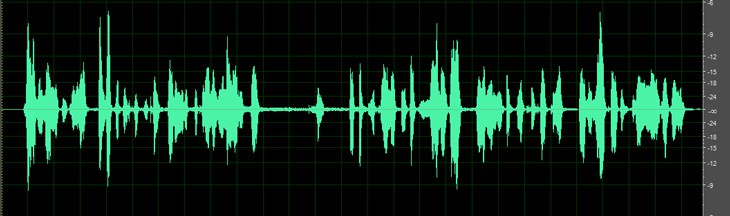
Waveform image with high audio bit rate
High bit rate audio file waveform (1536k bps)

Waveform image with low audio bit rate
Low bit rate audio file waveform (32k bps)

It is a comparison of two data with the same music data but with different bit rates. If you look at the waveform, you can clearly see that the height and density of the waveform are smaller for the music data with a lower bit rate because the data is removed.

Audio files with a low bit rate will sound like you are listening to a radio cassette player.

How does the image quality and sound quality change when the bit rate is converted?
The bit rate can be changed later by encoding work.

If you convert high bit rate video or audio data to a low bit rate, the image quality and sound quality will be reduced as the bit rate is set low for both image quality. as for sound quality. At this time, if the image quality and sound quality after conversion are within the allowable range, there is basically no problem.

Conversely, converting low bit rate video and audio data to high bit rate causes problems. If you check the converted data, the bit rate certainly becomes high, but there is no change in image quality or sound quality.

It should be noted here that it cannot be converted to a quality higher than the image quality and sound quality of the video and audio data that have already been converted to data.

If you want high image quality and high sound quality, you need to be careful about the timing of the video data creation and the setup of recording devices such as video cameras.

Note that you can basically reduce the high bitrate things, but not the low bitrate things.

Relationship between bit rate and frame rate
Simply increasing the frame rate will increase the bit rate.

For example, if you have 60fps and 30fps videos, the 60fps video will require twice the bit rate.

However, keep in mind that the actual bit rate may differ depending on the encoding method used when creating the video file. Keep it in mind as a guide.

Sponsor

Finally
To summarize the bit rate

Data flow for 1 second, unit is bps
The higher the bit rate, the more data will move
If the bit rate is high, the videos and music will be beautiful. But the file size also increases
The lower the bit rate, the smaller the file size. But the videos and music deteriorate
Even if you convert a low bit rate to a high bit rate later, the quality does not change, but the file size increases.
As the frame rate increases, so does the bit rate. Simply because the amount of information (amount of data) per second increases.
This concludes the explanation of bit rates.

Detailed explanation of bit rates for video and music files Part 2

What is a bit rate?

Detailed explanation of bit rates for video and music files Part 2

Bitrate

How to check the bit rate
You can check the bit rate by looking at the detailed information of video files and music files on both Windows and Mac.

BitRate

How to check bitrate in Windows 10
Click Properties on the context menu of the video or audio file for which you want to check the bit rate.

Video file properties
The properties window will open, so click the Details tab. The bitrate purification method is shown on the video and audio items.

In Windows 10 video file properties, you can see three bit rates. Check the red frame in the figure above.

Data rate is the bit rate of the video data.
Total bit rate is the bit rate of the video file, including video data and audio data.
The bit rate of the audio elements is the bit rate of the audio data, isn’t it?
Video file bit rate
As you can see from the image above, the video file contains both video data and audio data, so there is a bit rate for each of the video data and audio data.

How to check the bitrate on your Mac
Open the video file in QuickTime.

On the QuickTime menu, click Window> Show Movie Inspector.

Mac Video File Inspector
The inspector is displayed. The item called data rate is the bit rate of the video file.

Image quality comparison due to bit rate differences
Bit rate comparison, original image
This image was exported from the video data.

With this video data, we prepare a video data set with a high bit rate and a low bit rate.

Detailed explanation of bit rates for video and music files

What is a bit rate?

Detailed explanation of bit rates for video and music files

Bitrate

What is a bit rate?

Bitrate

Bitrate is an unavoidable experience in video editing and music production.

The word bit rate sounds a bit complicated, but of course, video and audio files. It is also often found in various situations, such as mobile phones and internet lines.

What is the bit rate? It’s surprisingly useful to remember it sensually, so remember it.

I think the person who visited this page is a beginner asking “What is bitrate?” So I hope I can explain it in the easiest and simplest way possible.

Bit rate basics
To briefly explain the bit rate, it refers to the amount of data per second for communication, such as video files, music files, and the Internet.

The so-called reproduction and communication are data streams. This stream uses a unit called bps (bit per second) to indicate how many bits flow in one second (per second).

I think it is easy to understand if you can imagine the road that a car passes by. The car is the data and the data stream is the road.

Taking into account that a road with many cars carries many people and luggage, it can be said that a lot of data (information) flows. This is called high bit rate.

On the contrary, if there are few cars in motion, it can be said that little data (information) flows. This is called a low bit rate.

Image of many cars on the road.
A state in which the amount of data is large and the bit rate of the stream is high

Image that there are not many cars on the road.
A state in which the amount of data is small and the bit rate is low

Should the bit rate be high?
A high bit rate means a lot of information. If there is a lot of information, it sounds great, like high image quality for videos and high sound quality for music, but it has a big disadvantage.

The disadvantage of a high bit rate is that it increases the data capacity of a single file. If the data capacity is too large, it can take time to send someone or move data between hard drives, making it difficult to manage.

Therefore, the codec was developed to reduce data capacity while maintaining high image quality and high sound quality. I’ll talk about codecs another time, but it is necessary to set the bitrate keeping in mind the balance between image quality, sound quality and file capacity so that the data capacity is easy to handle.

What is the standard bitrate for smartphone videos? Part 3

What is the standard bitrate for smartphone videos? Part 3

Smartphone

Estimated audio bit rate
In the case of audio bit rate, “128 kbps” is basically a guide.

Smartphone bit rate

Generally, for lossy codecs like MP3, AAC, WMA, AC3, Vorbis, a voice bit rate of around 128 kbps is sufficient. On the other hand, if the video is geared towards sound quality, it should be around “192-320kbps”.

Three Points to Consider When Considering the Bitrate of Smartphone Videos

There are a few things to keep in mind when considering the bitrate of your smartphone video.

When creating a video, you should use the appropriate bitrate for factors like size, but when considering bitrate, you need to keep three points in mind.

Here, we will introduce three points to keep in mind when considering the bitrate of smartphone videos, so why not refer to what kind of points to keep in mind?

Bit rate notes 1: The numbers are just a guide.
The proper bitrate for smartphone videos is just a guide.

The bitrate of a video involves multiple factors, not just the size of the image. For example, if you want to save a video with a lot of movement in high quality and a video with little movement that you want to save in medium quality, the appropriate bit rate will be different even if the image size is the same.

So, consider the bitrate you need as a guide only.

Bit rate note 2: consider the resolution according to your purpose
Let’s decide the optimal resolution according to the purpose of the smartphone video.

Even if you call it a smartphone video, it does not mean that a video with almost no motion and a video with high motion should have the same resolution. It is important to select the one that suits your purpose, such as high resolution for videos showing precise movements and low resolution for videos with little movement.

Therefore, when considering the resolution of a video, consider what the video is about.

For seminar videos
Since the seminar video is almost motionless, no high resolution is required.

The seminars and training videos aren’t particularly poignant videos, so lower resolutions won’t be a problem. For example, there is not a big difference between a low image quality of about 300 kbps and a high image quality of about 1500 Kbps, so it is recommended to make a light and low quality video.

For promotional videos
For promotional videos, it is a good idea to have a certain resolution.

It is not attractive that the resolution is low and that the video does not look beautiful in the video for internal promotion. However, it depends on the content of the video itself, so if you are not sure about the resolution, it is recommended to prepare a higher resolution and a slightly lower resolution and compare them.

For sports videos
High resolution is best for sports videos.

The bit rate has the characteristic that it is required since the difference with the previous frame is greater, and it is necessary to set it higher for videos with a lot of movement.

Therefore, if the resolution of the sports video is low, the outline will be broken and the color will fade, resulting in a stressful video.

Bit rate note 3: consider file size
The higher the bit rate, the larger the file size.

Of course, it depends on the content of the video, but as the bitrate increases, so does the file size, so this needs to be taken into account.

What is the standard bitrate for smartphone videos? Part 2

What is the standard bitrate for smartphone videos? Part 2

smartphone bit rate

Video Terms to Remember 1: Resolution
Resolution is the number of vertical and horizontal pixels in a video.

Smartphone BITRATE

The higher the resolution, the better the image will look. For example, if you prepare the same image with the same resolution of “640 x 360” and “2560 x 1440”, the latter will be clearer in detail.

Also, both the resolution and the pixel refer to vertical and horizontal pixels, but in the case of the number of pixels, it is expressed by the total number, so if the resolution is “1980 x 1080”, the number of pixels will be “2,138,400”.

Video term 2: frame rate to remember
Frame rate is the number of still images per second of video.

The frame rate unit is “FPS (Frames Per Second)”. Since a video is made up of a collection of continuous still images, the higher the frame rate, the smoother the video. However, the amount of data will increase accordingly.

Therefore, it is important to set the frame rate to the appropriate size according to the purpose of the video.

Video Term 3: Codec to Remember
A codec is a codec that compresses and decompresses audio and video data.

The larger the size of the video, the greater the amount of data, and the higher the quality, the larger the file size. Therefore, it is necessary to compress the data with a codec.

For example, there are types such as “MPEG-4” and “MPEG-2” for video codecs and “MP3”, “AAC” and “FLAC” for audio codecs.

Estimated bit rate suitable for smartphone videos

For smartphone videos, the standard bit rate is “300 kbps” or “600 kbps”.

Taking as an example the frame size that is often used for inline distribution, if the frame size is 480 x 270 px, 360 x 270 px, the bit rate is “300 kbps” and if the frame size is 640 x 360 px, 480 x 360 px, the bit rate is “600 kbps” will be a guide.