Video Formats and Their Features Part 2


Free Download Mp4Gain
picture

Video Formats and Their Features Part 2
video formats

Video file extensions

Video Formats

The video extension (like any other file) is a set of characters that help the Windows operating system to determine the type of information contained in the file, as well as to choose the appropriate program to open it. The video file extension classification is as follows:

AVI (Audio-Video Interleaved) is a very popular format, more precisely, a container. It was developed by Microsoft. This container can store four types of data: audio, video, text, and midi. It can include video of any format, from MPEG-1 to MPEG-4, sounds of various formats; the codec mix can be anything. The contents of the AVI container can be found using various programs, from a simple VideoToolBox to a powerful Adobe Premiere.
WMV (Windows Media Video) is another Microsoft format. If you create a movie in Movie Maker that comes with Windows, it will be in this format.
MOV. This format was invented by the Apple Macintosh. In addition to video data, it can contain graphics, animations, and 3D. The files of this format are played in QuickTime Player from Apple itself,
MKV (Matroska or “Matryoshka”) is another container that can hold both video and audio, as well as subtitles and the like. MKV is open source and has been used almost everywhere lately. Files in this format are playable on most players, including Windows Media Player, which is included with Windows.
3gp is a third generation video format for mobile phones. Movies recorded in this format have poor image quality. However, the small size eliminates this disadvantage. Also, 3gp video seems more or less visible on small phone screens.
Video formats used on the Internet
Videos created on the Internet usually have one of the following formats:

FLV (Flash Video) is a video format used by various video hosting sites like YouTube, RuTube, Google Video, and others.
An animation or video in Flash format created in Adobe Flash has the extension SWF (Shockwave Flash). To play these files, you need a browser with Flash Player installed. Videos in this format are also ubiquitous on the Internet, where you can watch them directly from the site.
RealVideo is a format created by RealNetworks and used for television broadcasts on the Web. Movies recorded in this format have an RM, RA or RAM extension and are small in size and of poor quality.
File extensions found on DVD
If you look at the contents of the folder with the DVD movie, you will not immediately understand which file you need to run for the movie to start, because there are a lot of them there. But if you know how files of different extensions differ, this variety will be easier to navigate:

VOB (Versioned Object Base) is an extension of the container, which then contains video (or several at the same time) in MPEG-2 format, audio, movie subtitles and menus. These are the main files on the movie DVD.
IFO files contain information about the movie, the order in which the VOB files are played, and the menus. That is, these are service files that are created in the process of burning a DVD movie.
Also on DVD you can view video files with m2v and m2p extensions (MPEG-2 format). It makes no sense to delve into its features and functions, we can only say that they are necessary for creating VOB files and burning DVD movies.
Optical disc formats
While we’re talking about the files found on DVD, it’s worth talking a bit about the formats of optical digital drives:

Perhaps the most popular of them is the DVD. It is he who is the reason why the VHS format has sunk into oblivion. DVD videos are compressed using the MPEG-2 standard, have a bit rate of 2000 to 9800 Kbps and a size of 720×576 (for PAL) or 720×480 (for NTSC).
HDDVD is a large capacity disc that can record high definition video. Video compression standards are the same as for Blu-Ray.
Blu-ray disc. Next-generation optical media with increased storage capacity for video information, including high definition. It became widespread in 2006 and in 2008 it replaced the HDDVD format. All Hollywood studios have switched to this format.


Free Download Mp4Gain
picture


Mp4Gain Main Window
picture


Mp4Gain Features
picture


Free Download Mp4Gain
picture

Video formats and their characteristics

Video formats and their characteristics

Video formats

Even if you’ve never processed a video, you must have heard out of the corner of your ear that there are some video formats. That by the name (extension) of the file, you can easily identify this format. And you’ve probably heard that if necessary, you can convert one video format to another. Want to know more?

video formats

Before talking about video formats, let’s say a few words about what video standards are.

NTSC. Developed in the United States in 1953. The screen resolution is 720×480 pixels, the frame rate is 30 FPS.
COMRADE. This standard was developed in Germany in 1967. The screen resolution is 720×576 pixels, the frame rate is 25 FPS.
SECAM. A standard developed in France in 1956. It is true that it only concerns television broadcasts, so we will not focus on its characteristics.
Video recording formats
There are several video recording formats, which are divided into analog and digital. To begin with, let’s talk about analog formats, among which the most popular is VHS (more precisely, it was, especially in the 80s-90s). It has a whole family of varieties: VHS-C, S-VHS, Video8, etc. Since 2008 it is no longer used, because it could not withstand the competition, and it is hopelessly out of date.

Video tape (VHS)

But digital video formats are still alive and well:

MiniDV. The recording is done on magnetic tape, 1 hour of video “weighs” 13 GB, the recording speed is ~ 25 Mbit / sec.
HDV. Again, the recording is done on magnetic tape, but the recording quality is much better compared to the previous format – the resolution is 1440 x 1080 with a 16: 9 aspect ratio (interestingly).
AVCHD. High Definition Video Format, whose name stands for Advanced High Definition Video Coding. It is used to record videos in high definition 720p (HD ready), 1080i and 1080p (Full HD) modes on hard drives or memory cards (SD, microSD and Memory Stick PRO). When recording to discs, these are typically 8cm rewritable AVCHD or Blu-Ray discs.
Compression standards and codecs
If you often have to record videos and upload them to the Internet, you should familiarize yourself with the compression standards and codecs that allow you to reduce the file size and as a result, speed up the download of the video to a file hosting or hosting service. videos. So right now there are the following compression standards:

MPEG is one of the main file compression standards. It stands for Moving Pictures Expert Group (the name of the organization that developed it). It has four varieties:
MPEG-1: a file compression format for CDs with mediocre video quality (352×240), currently practically not used;
MPEG-2 is used for digital television and DVD.
MPEG-3 (not to be confused with MP3 audio compression technology): not currently used.
MPEG-4 format can be obtained using codecs like XviD, DivX, etc. Even though it compresses video more strongly than MPEG-2, the image quality is quite decent, especially when using the H.264 codec.
H.264 is a standard that is characterized by a high compression ratio of video data while maintaining decent image quality. Excellent for videos uploaded to the web.
XviD and DivX are highly compressed codecs (based on the MPEG-4 standard).

Video codecs, video formats – what does this all mean?

Video codecs, video formats – what does this all mean?

Video Codec

If you are puzzled by the endless list of export options in your video editing software, this article is for you. Let’s first look at the definition of a codec.

Video Codecs and Containers

Then we will look at the concept of video format, and then we will look at some of the most common codecs and their uses.

If you are recording or editing video, you will almost immediately come across the term “codec”. Since there are so many and it’s hard to tell them apart, I’ve made a quick overview to help you get started. Once you understand certain terms, you can better decide which one suits your needs. Let’s start with a simple definition.

The video codec is.
A codec is actually a combination of two words: an encoder and a decoder (co / dec). What are they doing? Simply put, because video files are so large, you need a way to make them smaller. The codec encodes, compresses data to store or send it, and then decompresses it for playback or editing.

A codec is a computer code that performs its function each time the software calls a file. Codecs can also be used on physical equipment, such as a camera, to digitize incoming video and audio.

This happens in real time, either at the point of capture or at the point of playback. However, if you are not a broadcast engineer, you will have to rely on your computer or device to select the codec. Hardware compresses your video and audio data for viewing, streaming, or storage.

The video format is.
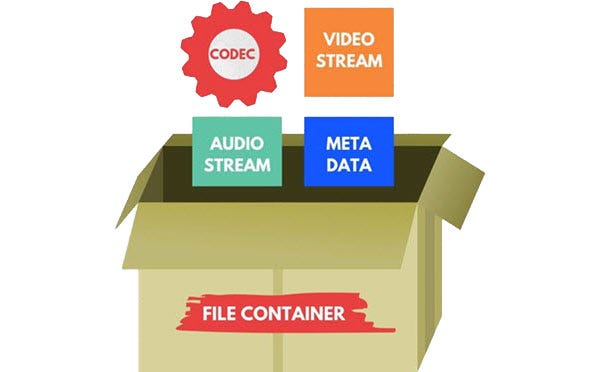
The file format is similar to a container. The container contains data that has been compressed by a specific codec. And sometimes they have the same name.

For example, a file format such as Windows Media Audio contains data compressed with the Windows Media Audio codec. However, a file format such as Audio Video Interleaved (AVI) can contain data compressed with any of several different codecs, including MPEG-2, DivX, or XviD codecs.

AVI files can also contain data that is not compressed by any codec. Therefore, depending on the codecs installed on your system, some AVI files will play fine, while other AVI files, despite having the same file extension, will not play.

It also affects the audio. There is often a situation where when playing a video, the sound plays, but the video does not. This means that the appropriate video codec is installed on your device.

Video codecs

In photography, the choice of the recording codec is quite limited: we usually fluctuate between the JPG format and the Raw format. In video, the choice is slightly wider: MPEG-1, MPEG-2, MPG-4, H264, H265, RAW, ProRes, ProRes Raw, Motion jpeg, etc.

So what are these codecs for, what uses are they designed for, and which ones should you choose?

Códecs

CONTAINERS AND CODECS are NOT the same!

Digital videos are contained in files. These files are called “containers”. The extension of these files often makes it possible to determine their type. The most common containers are MP4, MOV, AVI and MXF. The MXF container is generally used in professional camera series from manufacturers such as Sony or Panasonic.

These containers are “boxes” or “folders” that consist of several elements: video track, sound tracks, time code or subtitles. The purpose of the container is to synchronize all the elements it contains.

Therefore, you cannot know the codec of a video from the file extension: for example, an .avi file and a .mov file could use the same codec to encode the video track.

WHAT IS A CODEC?

A codec is a mathematical procedure consisting of algorithms used to encode and decode the image (codec). It helps define how sensor information is stored and the strategy for compressing and decompressing images.

codec

The size of a one minute 4K video file is about 50 GB. Therefore, it is easy to understand the main advantage of using a codec: compression. For the same minute of 4K recording, for example, using the H264 codec reduces the file size by a factor of about 27, or a final size of about 1.8 GB.

The more “codec” a codec is, the more complex the decoding will be and it will require a powerful machine to accomplish this task. At the same time, the higher the compression, the greater the loss of information that can make post-production difficult.

To achieve this optimization, most codecs use spatial compression: each image is compressed independently of the other images; This is known as an “intra” codec. For more compression, more complex codecs add temporary compression: we’re talking LONG GOP (GOP for “Group of Pictures” or “Long Group of Pictures”); Codecs of this type record only one full image per x images (often 12) and retain only what has changed between these images.

Video codecs and possible failures

Video codecs and possible failures

Numerous queries that you make to us as readers are caused by one of those incompatibilities in something that should be as simple as being able to put a file in a pendrive and that later (for whatever astral reason) it cannot be reproduced due to a failure or due to other. And this, dear reader, is almost always given by the codecs.

So with the intention of explaining and the desire to give you simple solutions, we elaborate this article where you can know what they are, how to detect them, how to convert them easily and by which way it is better to insert it to our precious Smart TV. But, let us start at the beginning.

But what is that about codecs?

The first thing to distinguish is what a codec and what a container. Sometimes they are confused and it is essential to define them to identify them and get to the point when we are presented with any incompatibility in any file that we want to reproduce.

Surely you sound files with formats as famous as .mpg, .avi, .mov, .divx, .mkv … Well, all these are containers of content both in the form of audio and video tracks so that later when playing them play all at once, in tune and with sufficient quality. That’s where the codec comes in.

A codec is simply a program that creates a particular file with encryption. Hence its name … to encode and decode these files in a language or code that improves image and sound quality or reduces the file size for a better transfer over the network of networks.

So to sum up, one issue is the type of file format or extension that we have in front of us and a very different one, how it has been encoded, in what language, that our TV will then be able to interpret and reproduce correctly.

And it is that before a problem of reproduction of file the first thing that we have to know is with what type of codec it has been codified. To do this in a very simple way we can find out with a simple video player on our PC.

How to know the compatibility of Smart TV

Knowing what codec or container our “smart” television can play is critical to know what type of video file to download and that it doesn’t trouble us later when playing it with the smart TV model we have at home. But this information is not always at hand as we expect. There are brands that do not include this information in detail on their website or in the manual.