What is the difference between CBR / VBR / ABR in audio / video conversion? 


Free Download Mp4Gain
picture

What is the difference between CBR / VBR / ABR in audio / video conversion? 

CBR vs VBR vs ABR

Bit rate is an index that determines the quality of compressed video and audio. Bit rate is the number of bits per second, and generally the higher the bit rate the higher the quality. However, the file size will increase accordingly.
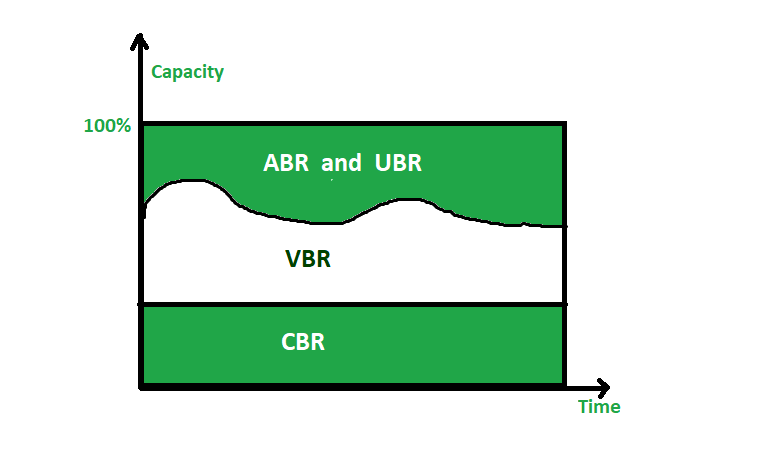
ABR vs CBR vs VBR

The compression method is the behavior of the bit rate at the time of compression, which is the constant bit rate method (CBR), the variable bit rate method (VBR) or the average bit rate method (Averate Bit Rate, ABR). be classified

Constant Bit Rate (CBR) functions

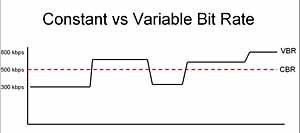
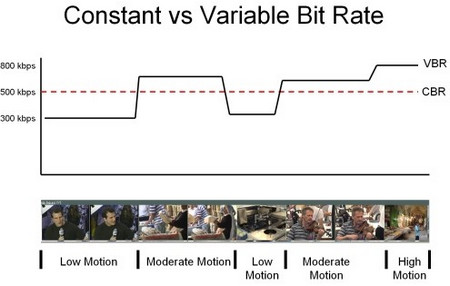
The compression method with a constant bit rate is called the constant bit rate (CBR) method. Since the bit rate is fixed, it is not only easy to predict the file size after compression, but it is also possible to search for the playback position at high speed. However, in the video there are scenes with little movement and scenes with a lot of movement. problems with such as quality change.

WAVE and uncompressed AIFF are also CBR.

advantage
It is possible to predict the size of the file after compression.
You can search the playback position at high speed.
Disadvantage
Quality tends to vary
Variable Bit Rate (VBR) Features
The compression method by changing the bit rate is called the variable bit rate (VBR) method. The VBR scheme places the jitter data with a high intense bit rate, the jitter is compressed by lowering the loose position, in its entirety the quality is kept constant can be compared with the CBR can be compressed with high quality if it is said. However, the size of the compressed file is unpredictable because the bit rate changes from moment to moment. Also, it takes longer to find the playback position than CBR.

advantage
Easy to control quality
High quality

Disadvantage
Difficult to predict compressed file size
It takes time to find the playback position.
Average Bit Rate (ABR) functions
Although the bit rate is variable, the compression method with a constant average bit rate is called the Average Bit Rate (ABR) method. Although the bit rate fluctuates with this method, the size of the final file can be predicted to some extent because it is compressed so that the average bit rate of all data is constant. This allows you to keep the quality as VBR and predict the file size as CBR. However, it takes longer than other methods because the data must be scanned at least once before compression.

advantage
It is possible to maintain quality to a certain extent.
File size can be predicted to some extent
Disadvantage
The compression process takes time


Free Download Mp4Gain
picture


Mp4Gain Main Window
picture


Mp4Gain Features
picture


Free Download Mp4Gain
picture

How to get the correct bitrate

How to get the correct bitrate
appropriate

bit rate

Here’s a simple way to get the correct value:

Bit Rate

Don’t increase the frame rate too much
Change the codec type
Check the resolution
If you’re taking up too much CPU on your computer with high-bit video, try the following.

Don’t increase the frame rate too much
Don’t lift too much

Since the frame rate is edited with basically the same settings as the frame rate when recording a movie, if you don’t increase the frame rate too much at the shooting stage, you can naturally keep the bit rate low and reduce the amount of data. may. Even if the resolution is a bit high, if the frame rate is low, like 24fps, there is no problem even if the value is low.

Change the codec type
Change type

By changing the type of program called a codec that compresses and converts audio and video data, it is possible to save high-quality videos even at low values. The codec type can be configured at encoding time, and the recommended codec is determined by the medium the video uses, so try switching to a better performing codec within the recommended encoding and range.

Check the resolution
check

Unless you have a specific purpose, the quickest way to lower the bitrate is not to edit with high image quality, such as 4K video. High-resolution videos have a large amount of information, so it is only natural that the bit rate is high.

So if lowering the resolution doesn’t reduce viewer comfort, try lowering the resolution a bit.

abstract
In this article, I explained the term bitrate, which is a must for anyone editing video. It seems a bit difficult compared to frame rate and resolution, and you should be able to set the proper bit rate by referring to this article.

By setting a suitable bitrate, you can create a video that is easy to handle with a small amount of data while maximizing the quality of the video.

The following article explains in detail how to edit videos.

[Video Editing Guide] Explains how to edit videos in 7 steps

Anyone can easily create video ads and video content. It acquired the number one share in the advertising and media industry for the second year in a row. (* 1) It has been introduced in more than 400 companies, mainly large companies, advertising agencies and production companies.

Estimated overall bit rate

Estimated overall bit rate

bit rate

approximate indication

Variable Bit Rate

Here are some general guidelines. The value that can be smoothly reproduced varies depending on the line speed and computer specifications, but keep the following as a guide.

Video: 850 kbps
Audio: 128 kbps
Video: 700-1500Kbps (video and total audio)
Recommended bit rate for uploading videos to YouTube
Upload the video

Here are the recommended bit rates for videos used on YouTube. Values ​​differ based on SDR video and HDR video, so check each one. We will present every resolution and frame rate you record, so set the video to upload to YouTube with the following values.

When loading an SDR video
Values ​​for uploading SDR videos are as follows.

writes
Video bit rate / standard frame rate (24/25/30)
Video Bit Rate / High Frame Rate (48/50/60)
4K
35-45 Mbps
53-68 Mbps
2K
16 Mbps
24 Mbps
1080p
8 Mbps
12 Mbps
720p
5 Mbps
7.5 Mbps
480p
2.5 Mbps
4 Mbps
360p
1 Mbps
1.5 Mbps
When loading HDR video
Values ​​for uploading HDR videos are as follows.

writes
Video bit rate / standard frame rate (24/25/30)
Video Bit Rate / High Frame Rate (48/50/60)
4K
44-56 Mbps
66-85 Mbps
2K
20 Mbps
30 Mbps
1080p
10 Mbps
15 Mbps
720p
6.5 Mbps
9.5 Mbps
480p
Not supported
Not supported
360p
Not supported
Not supported
Recommended audio bit rate for uploaded videos
The recommended audio settings are as follows.

writes
Audio bit rate
monaural
128 Kbps
stereo
384 Kbps
5.1
512 Kbps
How to make a video with the proper bit rate?
How to create?

I will explain how to create video with proper bitrate when editing video. Since various factors such as resolution, frame rate, computer specifications, and the media to be used determine the appropriate numerical value, it is problematic to think about every time you edit a video, and many people have so decidedly decided. appropriate.

If you refer to the bit rate guide presented above and the “How to set a suitable bit rate” explained below, it is not a difficult setting at all, so try them all.

Disadvantages of too high a bit rate
Demerit

Of course, if the value is set too high, the image quality will be high, but the amount of data will be huge, and the video may be difficult for the viewer to see. Problems such as stalling or getting stuck while playing a video will occur.

Not that there is a problem with the video, but the amount of data is too large, which puts too much pressure on the viewer side. Also, if you don’t have a high-spec PC, you won’t be satisfied with the edit in the first place, and there are downsides that it will take up a lot of storage.

What is the bit rate?

What is the bit rate?

bitrate

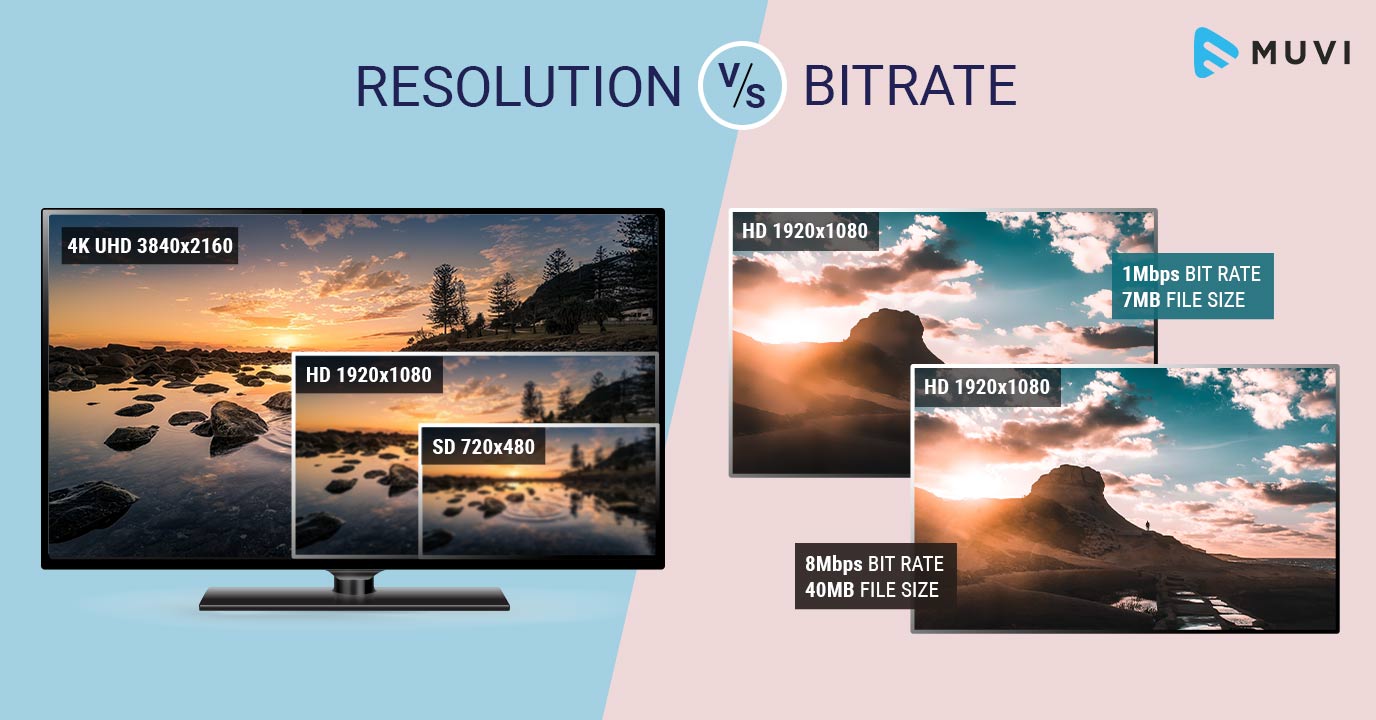
Bit rate represents the amount of data per second of video and is expressed as bps.

Bit Rate

Bps is an abbreviation for bits per second and 1 Mbps is 7.5 MB of data per minute. Since this value determines the amount of video data and the image quality of the video, those who edit the video should be aware of the appropriate setting method.

A video with a high bitrate value will have a lot of data and will be a heavy video that will take time to upload and download. High bit rate video has the characteristic of being able to express high quality and delicate images.

Those who edit videos need to acquire the minimum knowledge not only about the size of the video, such as the aspect ratio and resolution, but also about the bitrate that the amount of video data represents.

There are two types of bit rates
There are two kinds

There are two types of bit rates, which can be divided into audio and video. Generally, when editing a video, you should check the oval bitrate, which is the sum of these two types. The video is a complete work that combines audio and video, so there is no problem if you think about it in total.

Video cleanliness is determined by screen resolution x frame rate

The cleanliness of the edited video is determined by the resolution and the frame rate, and by setting the corresponding bit rate, the viewer can view the video in the highest quality. First, the resolution represents the number of pixels in the video and the upper limit of image quality is set at the recording stage.

Next, the frame rate shows how many images a video makes up per second, which is related to the smoothness of the video. By editing a high-image-quality video shot at the same frame rate as when it was shot, you can create smooth, high-quality video.

And the most important thing is the bitrate, and if this value is low, no matter how good the material is, it cannot be saved as a high-quality video. If you want to produce a beautiful video, you need to set it to a state where you can ensure the amount of data with a corresponding high bit.

What is the proper bit rate?
Suitable

The appropriate value depends on the quality of the video, but it is not always good to produce a video at a high bit rate so as not to reduce the quality. Since the value is the amount of data, the higher the value, the greater the amount of data, causing problems that cannot be processed by a low-spec personal computer.

There is a general recommended guideline based on resolution and frame rate, so it is recommended to configure it by referring to the following. Of course, if you are using a high-spec computer and want to produce a beautiful video with higher image quality, no problem, even if you produce a value slightly higher than recommended.

What is the bit rate in audio and video?

What is the bit rate in audio and video?

VBR vs CBR

Often times, you will want to adjust the bitrate when adjusting your video.

CBR & VBR

Many people find it difficult and annoying in technical terms, but if you don’t know it, you won’t be able to set it up correctly and the video quality will eventually deteriorate, so be careful. This article explains the meaning and function of bitrate in an easy-to-understand way, but if you want to understand it in detail, take a look.

Also, it is especially important that the standard bit rate is determined by the resolution and the frame rate, but it is better to change it at the same time as much as possible. This time, I will also introduce the operation procedure with the highly rated “iMyFone Filme” tool that you can set all three at once, but let’s download with the button below and try it together.

Part 1: What is the bit rate?
Bit rate indicates the amount of data that can be sent and received per second, and the unit is bps (bits per second). For example, if the video bit rate is 1 kbps, it means that 1000 bits of data can be transferred per second.

And if you break this down more concretely, there are the following three types.

“Video Bitrate

By analogy with the basic definition, video bit rate refers to the amount of video data per second. This value is calculated based on RGB data, frame rate, and resolution displayed by the color information contained in a pixel.

Bit rate of “speech”

Similarly, the audio bit rate refers to the amount of audio data per second, but the value is calculated using the sample rate (Hz) and the bit depth (bits). The first indicates how many times the sound is divided and recorded, while the second shows the amount of data per recording.

Bit rate “oval”

Speaking of the calculation formula, it is “oval bit rate = video bit rate + audio bit rate”. Also called total bitrate, this is also what commonly used video bitrates mean.

Frame rate

Frame rate

Frame Rate

Frame rate is an important setting factor that affects the “smoothness” and file size of a video.

frame rate

The unit is fps (frames / second). You can also tell how many still image frames are embedded per second.

A moving image uses the image persistence phenomenon of the human eye to display still images continuously so that they can be recognized as a moving image. It is said that the ability of the human eye can recognize up to 60 fps. So if you create a video at 60fps, you can tell that the video doesn’t look jerky.
On the other hand, this frame rate has a great effect on file size. Since it is necessary to save 60 still images in 1 second at 60 fps and 1 still image in 1 second at 1 fps, the file size varies greatly depending on the frame rate.
Generally, TVs and DVDs use 30 fps (29.97 fps) and most of them are set to 30 fps (29.97 fps) or less.
Unless you really need to reduce the file size, specify 30 fps (29.97 fps).
For reference when setting less than 30fps (29.97fps), the movie is 24fps and the 1Seg TV is 15fps. It is said that it can be lowered to 15 fps for videos with little movement, such as a person sitting and talking. If you set it to 10fps or less, it will no longer be a video but a slideshow level, and it will definitely look jerky. The minimum line for video is around 15 fps.

On the other hand, for videos with a lot of motion, such as sports and action, you may feel that 30 fps (29.97 fps) at the TV or DVD level is not enough. The file size will be large and it will be difficult to send and receive it over the Internet, but if image quality is prioritized, it is worth setting it to 60fps.
Current playback devices that support 120 fps are still rare, but next-gen TV streaming standards, 4K and 8K streams are specified up to 120 fps.
2. 2. Resolution (angle of view)
It can also be said that it is the size of the area to display videos. In terms of TV streaming,
1Seg → SD → HD → Full HD → 2K → 4K → 8K How much
The higher the resolution, the larger the rendering area, so naturally the video file size will increase accordingly.

Resolution (angle of view) TV broadcast Compatible storage devices
SD (720 px x 480 px) Analog broadcast DVD
HD (1280px x 720px) HDTV broadcast
* mainly in Europe —
Full HD (1920px x 1080px) High definition transmission
* Japan, strictly speaking,
High Definition BS: 1920px x 1080px Transmission
digital terrestrial: 1440px x 1080px Blu-ray Disc
(BD)
4K UHD (3840px x 2160px) 4K UHD streaming means Ultra HD.
Streaming started on December 1, 2018 with the Next Generation Streaming Standard. Ultra HD Blu-ray Disc
(UHD BD)
8K UHD (7680px x 4320px) 8K Transmission As with
4K, streaming started on December 1, 2018. Unknown current status

When considering Internet video usage, YouTube’s maximum resolution is Full HD (HD1080). With reference to this, if resolution is prioritized, it is set to Full HD, and if file size is prioritized, it is set to SD or less.

aspect ratio
It is the aspect ratio of the resolution (angle of view). 16: 9 is the standard for televisions, and 16: 9 monitors have become mainstream for personal computers, but there are still products with aspect ratios such as 16:10 and 4: 3, iPhone 3: 2, and Andoroid 16. : is not unified like 9.
Therefore, if the prepared video file has an aspect ratio of 16: 9 and the aspect ratio of the playback device is different, it will be played back by adjusting, expanding or contracting it on the side of the playback device.
When uploaded to YouTube, videos other than 16: 9 are automatically rendered with black frames at the top, bottom, left, and right.
For those who create and prepare videos, it is very kind to prepare video files with every aspect ratio, but if you can’t take the trouble, it’s usually fine to just create a 16: 9 aspect ratio.

Video Compression: Bit rate

Video Compression: Bit rate

Video Bitrates

It is not good to increase the bitrate too much
Bit rate = it is useless to rise above a certain level
It does not mean that you need to increase the bit rate.

Video Bitrate

For example, even if you encode a video with an original image quality of 100 at an ultra-high bit rate, the image quality will not exceed 100. (If possible, 99, etc.)

It is often the case that the image quality is 95 at a 5 Mbps bit rate, but the image quality is only 96 even if a 10 Mbps bit rate is assigned.

In such cases, it is useless to assign a bit rate of 10 Mbps.

The bit rate is to maintain the image and sound quality of the original video. It is not intended to raise the bottom.

High bit rate = high playback load
The higher the bitrate, the more playback load will be placed on the PC.

If you use a unnecessarily high bit rate, you will end up with the worst video, “Although the image quality is normal, the playback load is extremely high and the file size is a huge waste.”

So if you want to encode it for your own storage,

Video resolution
Video content
Let’s think about the bitrate to be assigned.

Related: How to Calculate Video Bitrate [Ratio to File Size]

However, if you want to post to Youtube, it will be encoded on the Youtube side and set to a suitable bitrate, so it’s okay if you encode at an ultra-high bitrate for now.

Related: Enco conditions and methods for videos published on Youtube


Video Compression: Relationship to Resolution

Video Compression: Relationship to Resolution

Video Bitrate

Higher resolution videos require higher bit rates. (Because it increases the amount of information per frame / second)

Video Bitrate

For example

Video “1280 x 720”
Video “1920 x 1080”
If you have two videos, the latter requires more bitrate. “1280 x 720” may be sufficient bit rate, but “1920 x 1080” is not sufficient.

For “Recommended bit rate” for “Resolution”, see Youtube recommended bit rate.

Recommended encoding settings for uploaded videos (details) – YouTube Help
→ https://support.google.com/youtube/answer/1722171?hl=ja

Relationship to frame rate
If the frame rate doubles, the bit rate will inevitably double.

This is because “the number of frames per second” is doubled.

For example

30 fps (2 Mbps)
60 fps (2 Mbps)
If there are two videos,

For 60 fps, “60 sheets at 2 Mbps” should be displayed, while

For 30fps, you only need to display “30 sheets at 2Mbps”, so the bitrate is actually half.

Reference: What is the frame rate? Difference between VFR (variable) and CFR (fixed)

It is not good to increase the bitrate too much
Bit rate = it is useless to rise above a certain level
It does not mean that you need to increase the bit rate.

For example, even if you encode a video with an original image quality of 100 at an ultra-high bit rate, the image quality will not exceed 100. (If possible, 99, etc.)

It is often the case that the image quality is 95 at a 5 Mbps bit rate, but the image quality is only 96 even if a 10 Mbps bit rate is assigned.

In such cases, it is useless to assign a bit rate of 10 Mbps.

The bit rate is to maintain the image and sound quality of the original video. It is not intended to raise the bottom.

High bit rate = high playback load
The higher the bitrate, the more playback load will be placed on the PC.

If you use a unnecessarily high bit rate, you will end up with the worst video, “Although the image quality is normal, the playback load is extremely high and the file size is a huge waste.”

So if you want to encode it for your own storage,

Video resolution
Video content
Let’s think about the bitrate to be assigned.

Related: How to Calculate Video Bitrate [Ratio to File Size]

However, if you want to post to Youtube, it will be encoded on the Youtube side and set to a suitable bitrate, so it’s okay if you encode at an ultra-high bitrate for now.

Related: Enco conditions and methods for videos published on Youtube

Resume
In short, it looks like the following.

If you want to make a video that emphasizes the quality of the image
→ Increase the video bit rate

If you want to make a video that emphasizes the sound quality
→ Increase the audio bit rate (increase the sample rate and bit depth)

When you want to make a video that emphasizes movement (smoothness)
→ Increase the frame rate of the video (simply doubling the frame rate requires doubling the bit rate)

Reference: What is the frame rate? Difference between VFR (variable) and CFR (fixed)
Reference: How to Change the Frame Rate (fps) of a Video

By the way, it is a bit rate encoding method.

CBR
Vbr
APR
The “image quality” and the “sound quality” also depend on this, so be careful with this as well.

Reference: Difference between CBR (fixed), VBR (variable) and ABR (average) [bit rate]


Video compression: Relationship to codec

Video compression: Relationship to codec

Video Bitrate

I mentioned earlier that “the higher the bit rate, the better the image quality and sound quality”, but the image quality and sound quality are closely related to the “codec”.

A “codec” is something like a “compression algorithm” for compressing “video” and “audio”.

Reference: What is video format? Codec difference

For example, the video codec “H.264” It is a very famous codec that is also used on Youtube and Nico Nico Douga,

(Addendum: Not used now …)

There is a codec called “H.265” that improves the “image quality per file size” of “H.264”.

“H.265” is “H.264 at about half the bit rate of”, “H.264 will get the equivalent of image quality and”. (The compression rate is double)

For example

Using “2Mbps” video bit rate with “H.264 codec”
Video with a bit rate of “2 Mbps” with the codec “H.265”
If there are two videos, the image quality of “H.265” is twice as beautiful even though the bit rate (file size) is the same.

s-25-11-2015_14h09_08
▲ Image comparing H.264 and H.265
(the character part etc. is quite different)
In addition, there is an almost four times difference in picture quality between videos using the “MPEG-2” codec used in DVDs and videos using “H.265”.

Also, the image quality is almost eight times different from that of “MPEG-1”, which is the predecessor of “MPEG-2”.

In other words, if you want to achieve the same image quality as “H.265” video with “MPEG-1”, you need 8 times the bit rate of “H.265”.

By the way, the video in unzipped state without using the codec
Uncompressed video
Uncompressed video
Is named. (Also called “raw video”)

The intro has gotten long, but what I mean after all is

“If you use a codec with a good compression rate, you can maintain reasonable picture and sound quality even at low bit rates.”

That’s why

In other words, the picture and sound quality are good.

Image quality (sound quality) = high bit rate x codec type
It is decided by the formula.

Reference: Different from the type of video codec (H.264, VP9, ​​MPEG, Xvid, DivX, WMV, etc.)

Reference: Different from the type of voice codec (MP3, AAC, WMA, WAV, Vorbis, FLAC, etc.)

Reference: Difference Between Lossy Compression and Lossless Compression [codec]

What is a bit rate?

What is a bit rate?

Video Bitrate

The bit rate in a video is “how much information is packed in one second”.

What if the bit rate is high?
Basically, the higher the bit rate, the better the picture and sound quality.

* Although it is closely related to the “codec” described later, it will basically improve.

There are two types of bit rates
Bit rates are assigned separately for “video” and “audio”.

The higher the bitrate assigned to “video”, the better the “image quality”.
The higher the bit rate assigned to “voice”, the better the “sound quality”.
Also, the sum of the two bit rates is called the “oval bit rate (total bit rate)”. (This oval bit rate is called “video bit rate”)

screenshot_2952
▲ If you open the video file properties and open the “Details” tab, you can see “What is the bit rate?”

(However, this Windows function is unreliable, so it is better to use video analysis software like MediaInfo)

In other words

Oval bit rate = video bit rate + audio bit rate
It becomes the calculation formula.

So even if it says “bit rate is high!”, It may mean “bit rate of video is high” and “bit rate of audio is not high”.

In other words, in such a case, the video will be “Image quality is good, but sound quality is not good …”.

Basically, the file size of “audio” is much smaller than that of “video”, so even if you increase the bit rate of “audio” significantly, the overall size of the file will not change as much.

Therefore, “speech” is often encoded uncompressed (linear PCM).

Relationship to image quality
The higher the “video” bit rate, the more accurate the color information that can be assigned to all pixels.

as a result

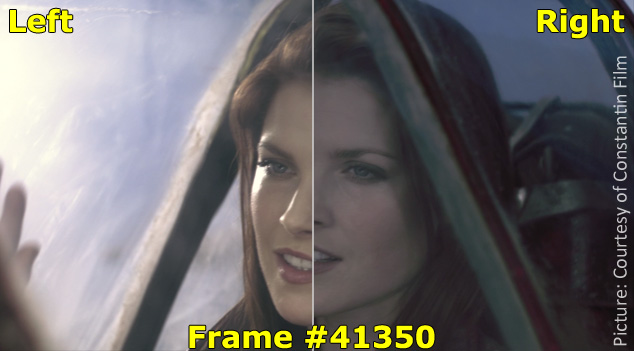
High bit rates improve image quality and
If the bit rate is low, the image quality will deteriorate.
koubittore-to
teibittore-to-to
▲ High bit rate (12 Mbps, 2.57 MB) ▲ Low bit rate (90 kbps, 20 KB)
* Actually, it is a gif video, so the bit rate is not accurate.

Bit rate difference

Also, in the case of a low bitrate, if you allocate bits evenly to all pixels, you will run out of bits, so in scenes where similar colors are continuous (such as a scene where the blue sky stretches without end), etc. Try to reduce the bits preferably.

As a result, “block noise” ↓ is likely to occur in such scenes.

Block noise
▲ Example of block noise (block noise)

Relationship to sound quality
The audio bit rate is

Sampling rate (Hz) x bit depth (bit) = bit rate (bps)
It can be expressed by the formula.

For example, when recording sound as digital data

How often do you record (= sample rate)
How much data is stored per interval (= bit depth)
Decide and register.

For example

Sampling rate: 44000Hz
Bit depth: 24 bit
If so, the sound is divided and recorded 44,000 times per second, and the sound is recorded using 24 bits for every 44,000 times.

In other words, if you want to improve the sound quality, you can increase the “sample rate” or the “bit depth”.

Increase the sample rate → Soft sound
Increase the bit depth → Increase the expressiveness of the sound, such as finesse and volume
Reference: Meaning and Relationship of Sample Rate, Bit Depth, and Bit Rate